
Validating tracking elements
Ensure you are using the Data Attributes Validator Extension (DAVE) on a live production page with results loaded, widgets rendered, and other UI present, as DAVE is intended to validate whether these attributes are set up correctly.
Don't have Constructor's Data Attributes Validator Extension? Install DAVE from the Chrome Web Store.
When you launch DAVE for a specific page type (e.g., search results page, browse category page, PDP), it verifies whether the page includes tracking attributes and then labels each item as passing or failing.
| Icon | Icon Description | Explanation |
|---|---|---|
 | A green checkmark | Attribute passes validation |
 | A red X mark | Required attribute is missing or invalid. Learn how to troubleshoot issues using our debugging tools. |
 | A yellow dash mark | Optional or context-dependent attribute is missing. Confirm with your Constructor implementation team whether this attribute is necessary for your setup. |
 | A gray X mark | Attribute does not apply to the current page type. You can ignore this attribute |
We'd love your feedbackWe’d love to hear about your experience with the DAVE extension. Your feedback helps us understand what’s working and where we can improve. Share your feedback with our team.
Search
Validate tracking on a search results page, including results and shopper interactions. You can find the full list of Search data attributes in our data-driven event documentation.
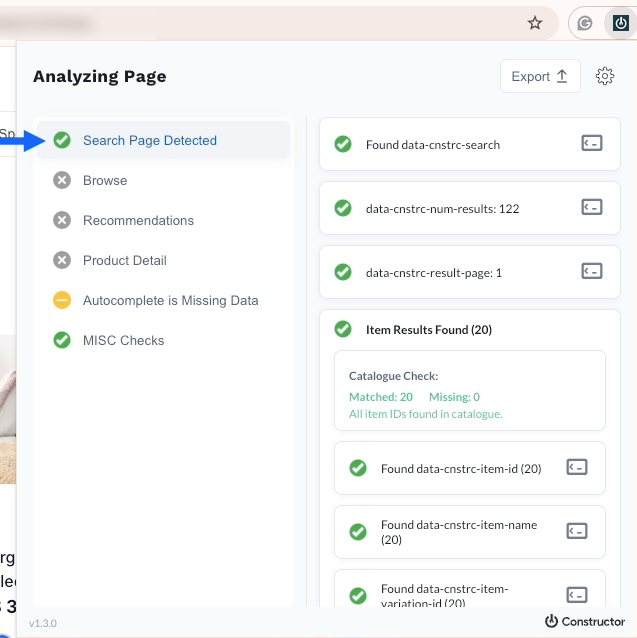
- Perform a search that returns results.
- Launch DAVE from your browser toolbar.
- Select Search Page Detected.
- Confirm all attributes pass validation.
Browse
Validate tracking on a browse category page, a collection page, or a facet page, including product listings and filtering interactions. You can find the full list of Browse data attributes in our data-driven event documentation.
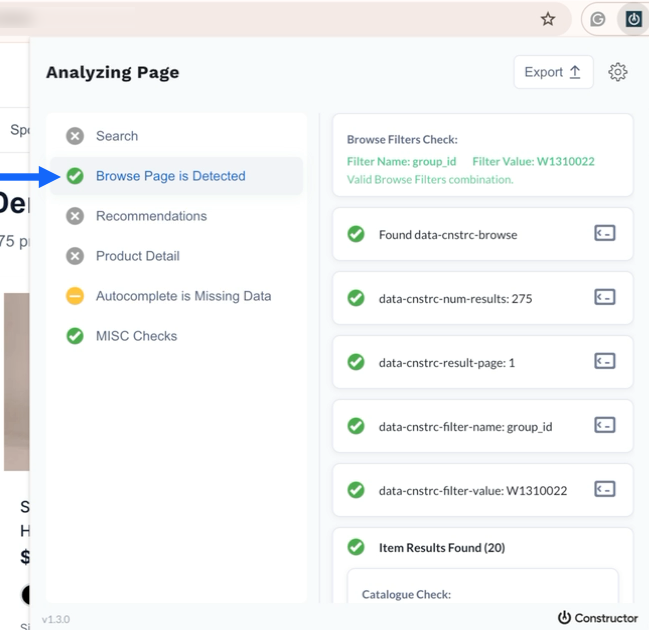
- Navigate to a browse category page, collection page, or facet page.
- Launch DAVE from your browser toolbar.
- Select Browse Page Detected.
- Confirm all attributes pass validation.
Recommendations
Validate tracking for a recommendation pod. You can find the full list of Recommendations data attributes in our data-driven event documentation.
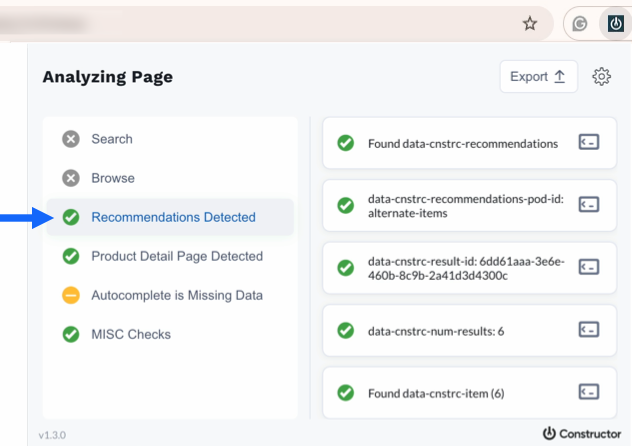
- Locate a recommendation pod on your site.
- Launch DAVE from your browser toolbar.
- Select Recommendations Detected.
- Confirm whether all attributes pass validation.
Product detail page (PDP)
Validate tracking on a product detail page (PDP), including product-level tracking and key interactions. You can find the full list of PDP data attributes in our data-driven event documentation.
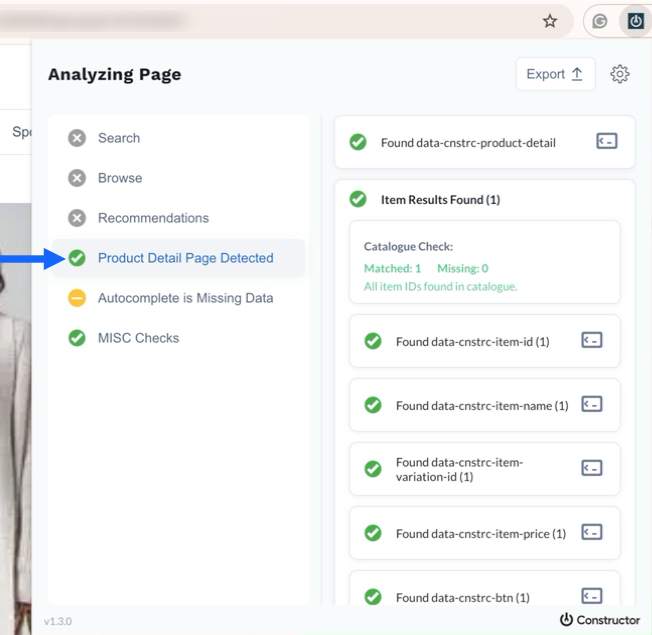
- Navigate to a product detail page (PDP).
- Launch DAVE from your browser toolbar.
- Select Product Detail Page Detected.
- Confirm whether all attributes pass validation.
Autocomplete
Validate tracking for an autocomplete search query, including query and product suggestions. You can find the full list of Autocomplete data attributes in our data-driven event documentation.
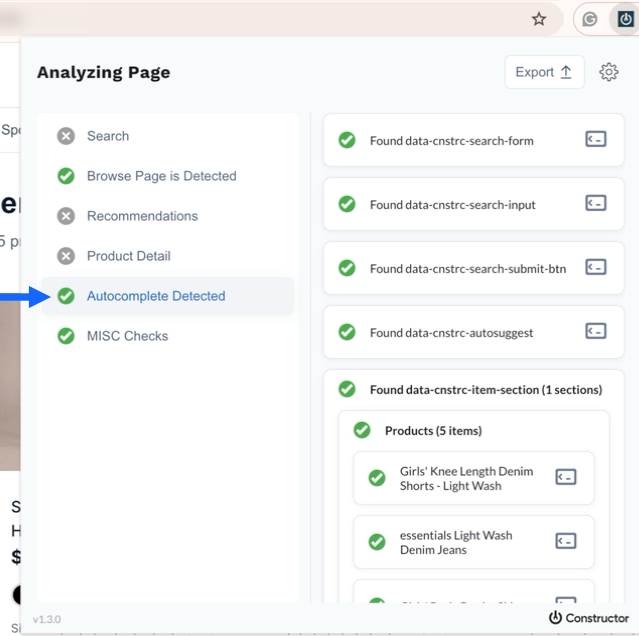
- Type enough of a query into the search bar to launch the Autocomplete drop-down.
- Launch DAVE from your browser toolbar.
- Select Autocomplete Detected.
- Confirm whether all attributes pass validation.
Miscellaneous (MISC)
Validate tracking for attributes that appear across the site. You can find the full list of data attributes for these MISC elements in our data-driven event documentation.
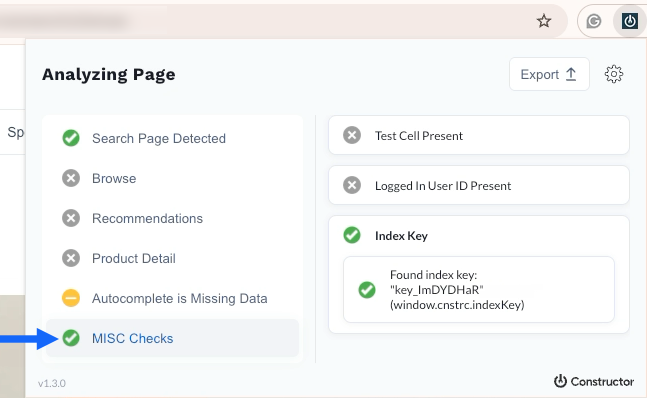
- Navigate to any page on the site.
- Launch DAVE from your browser toolbar.
- Select MISC Checks.
- Confirm whether all checks pass validation.
Export a tracking configuration summary
Generate a summary report when you want a single document that summarizes what passed, what failed, and what needs fixing on a page. You can share reports with your team or with Constructor support.
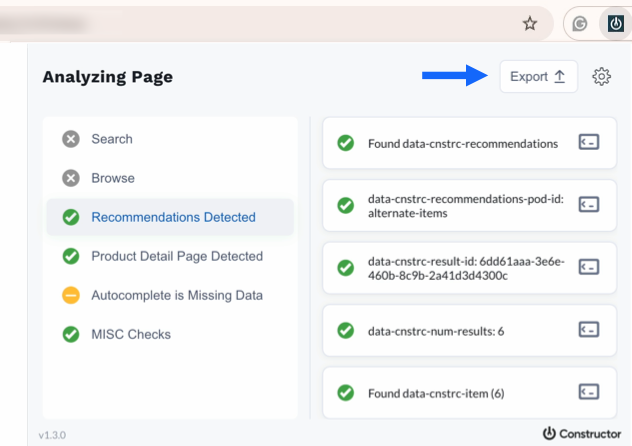
- Navigate to the context you wish to validate (e.g., a search results page, recommendations pod, browse category, etc.).
- Launch DAVE from your browser toolbar.
- Select the validated context from the left menu (e.g., Search, Browse, etc.).
- Select Export in the top-right corner of the extension window.
- A PDF summary will download to your device.
Updated 18 days ago