
Edit a searchandising campaign
Once you have created a campaign, you can make changes to the campaign by locating it from any index where it is live.
Edit an existing campaign
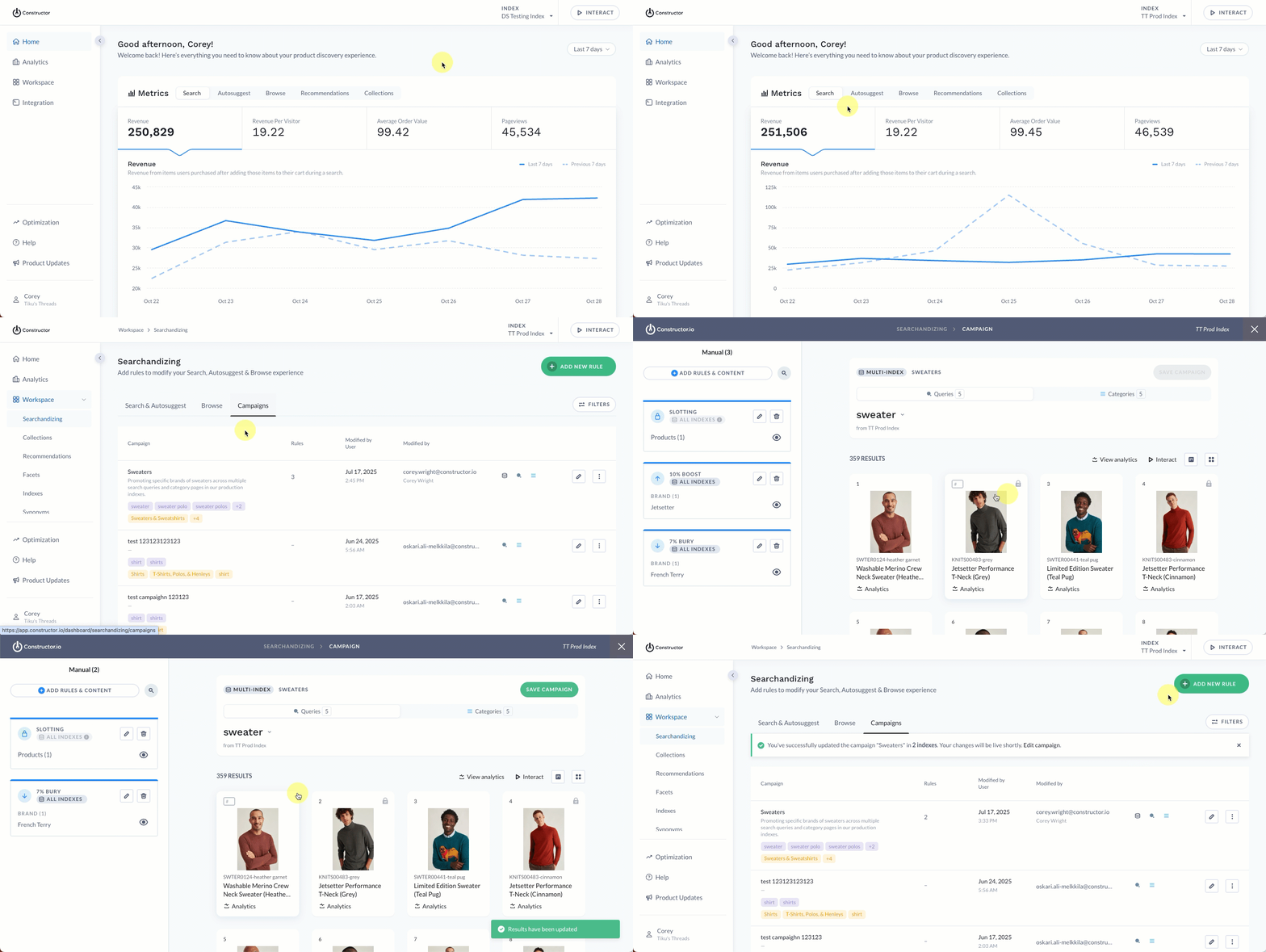
- Select Workspace in the side menu of the Constructor dashboard, then Searchandising.
- Important: If the campaign includes multiple indexes, first use the Index drop-down in the top-right corner of the Constructor dashboard to select an index where the campaign is live.
- Select the Campaigns tab at the top of the listing.
- Locate the campaign you wish to edit, then select the pencil icon to the far right of that campaign row.
- Make your desired changes, then select Save rules in the top-right corner of the page. Changes save to all included indexes and contexts.
Add index to an existing campaign
To add an index to an existing campaign, you will need to first navigate to an index where the campaign is live. From there, head to the Campaigns listing to edit that campaign.
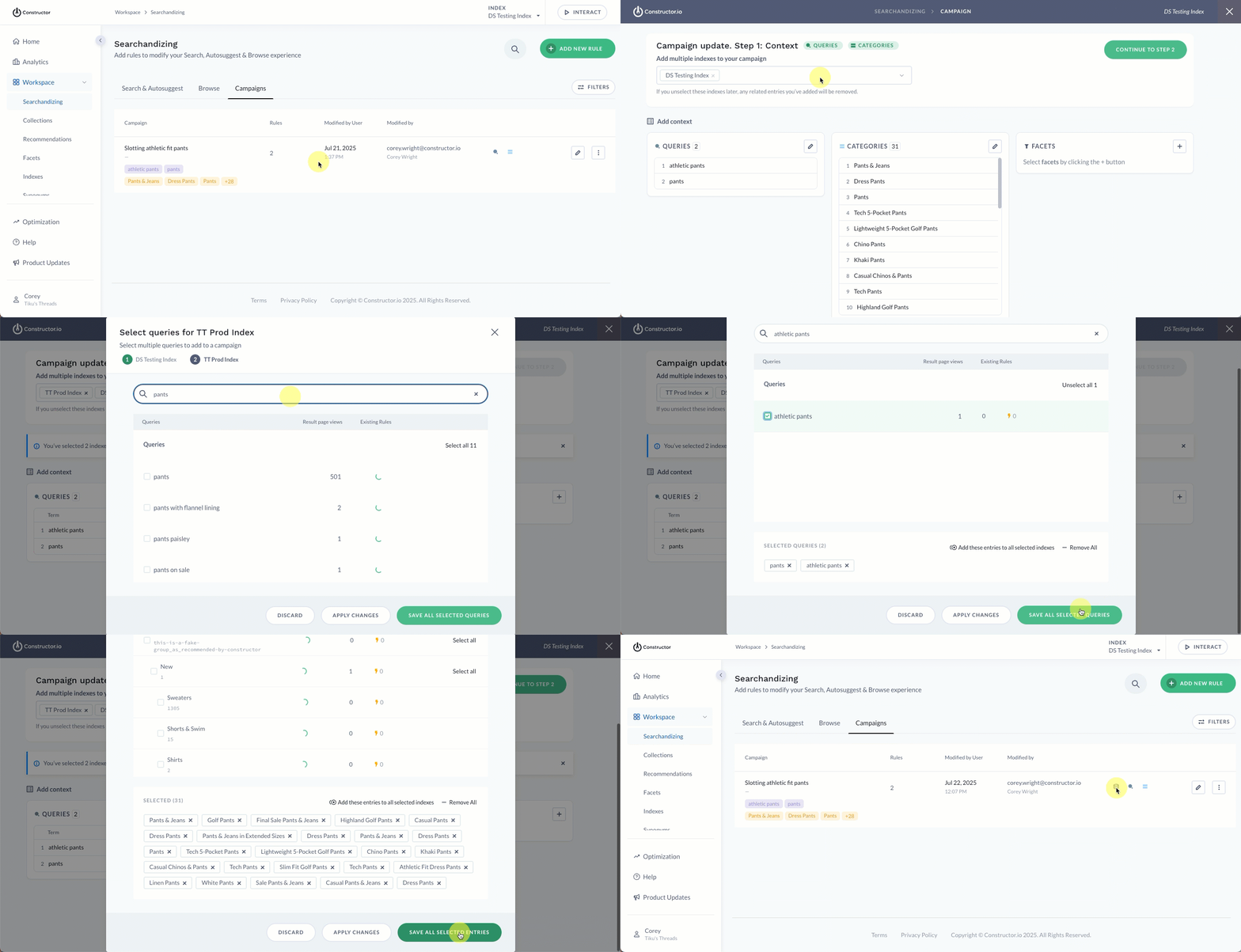
- From the Campaigns listing, locate the campaign you wish to add an index to, then select the pencil icon on the far right of that campaign row.
- Select the campaign name at the top of the rules page. This will allow you to edit the campaign details.
- Select Back to step 1 in the top-right corner of the page.
- Use the drop-down field in the top-left corner of the page to locate and select the index you wish to add to the campaign.
- Last, you will need to select the queries, categories, and facet pages you wish to searchandise in the new index. Learn more here.
- When done, select Continue to step 2 in the top-right corner of the page to finish saving the campaign.
Delete a campaign from an index
Deleting a campaign from an index does not delete the campaign for other indexes. It simply removes the specified index from the campaign, meaning the results pages for the specified contexts (e.g., search queries, categories, facets, and more) for that index will no longer be impacted by the searchandising rules defined in the campaign.
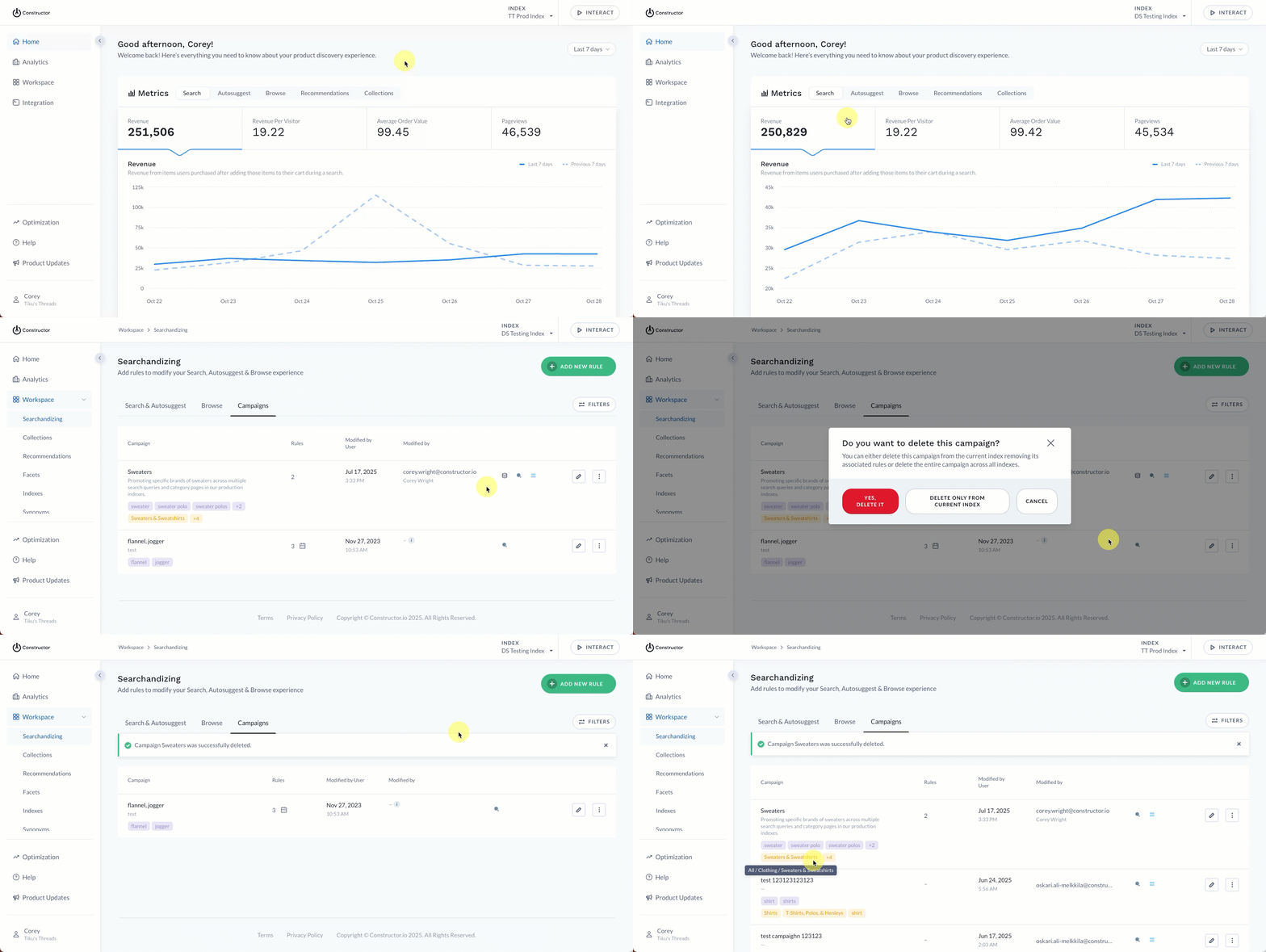
- Use the Index drop-down in the top-right corner of the Constructor dashboard to select the index from which you want to delete the campaign.
- Select Workspace in the side menu, then Searchandising.
- Select the Campaigns tab at the top of the listing.
- Locate the campaign you wish to edit, then select the three-dot icon to the far right of that campaign row.
- Select the trashcan icon.
- Select Delete only from current index.
The campaign will no longer appear in the selected index. However, if you navigate to another index where the campaign is live, you will see the campaign listed. Campaigns can always be added back to an index by simply adding the index to the campaign via an edit.
Delete a campaign
Deleting a campaign will remove the searchandising rules from every context and index defined. This action cannot be undone.
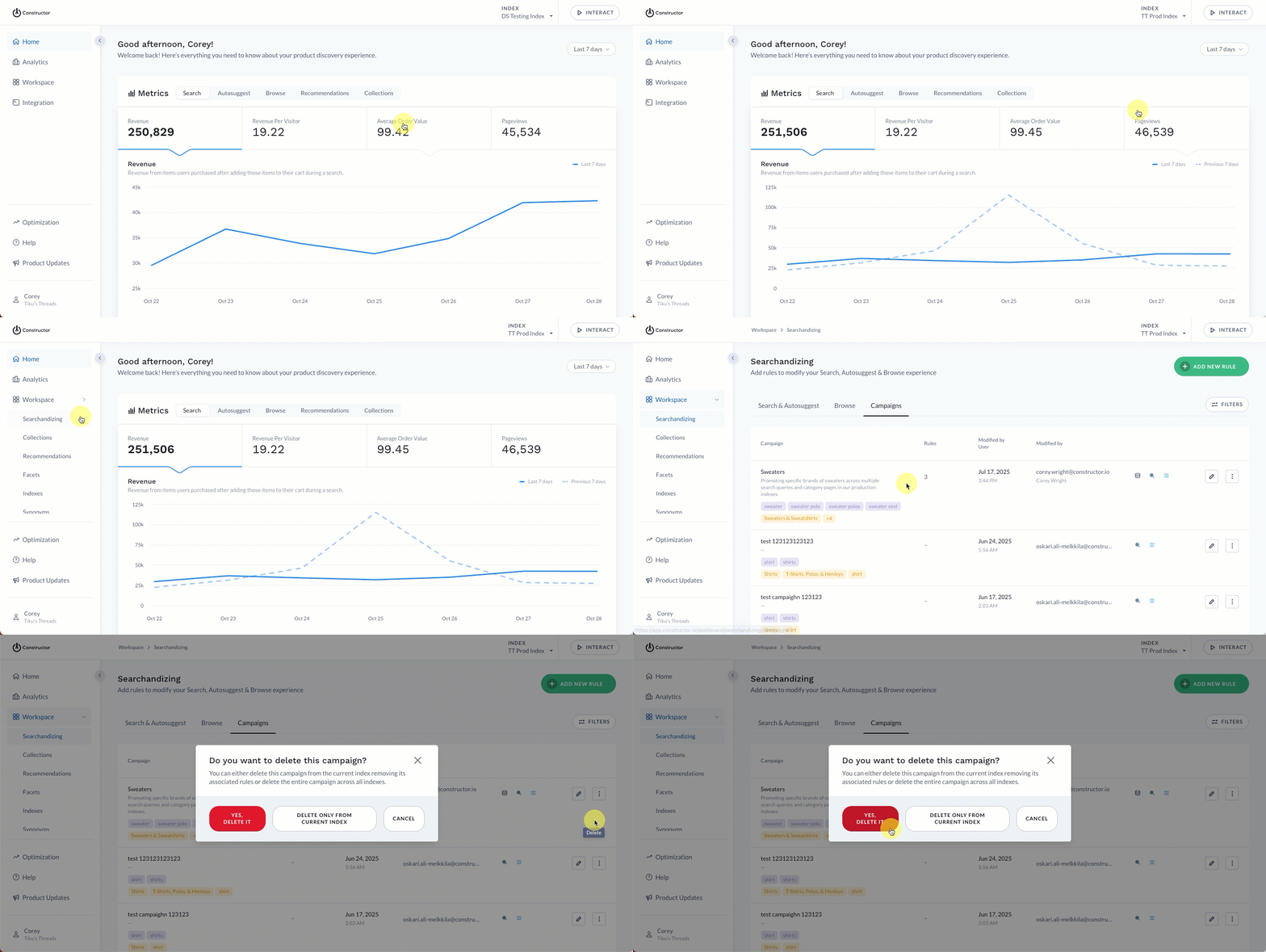
- Use the Index drop-down in the top-right corner of the Constructor dashboard to select an index where the campaign is live.
- Select Workspace in the side menu, then Searchandising.
- Select the Campaigns tab at the top of the listing.
- Locate the campaign you wish to edit, then select the three-dot icon to the far right of that campaign row.
- Select the trashcan icon.
- Select Yes, delete it.
Updated 9 months ago