
Learn about Collections
Collections give merchandising teams a flexible way to create curated product pages outside the standard catalog hierarchy. Use them to bring together products for a theme, occasion, campaign, trend, or audience, then let Constructor rank and personalize the results for each shopper.
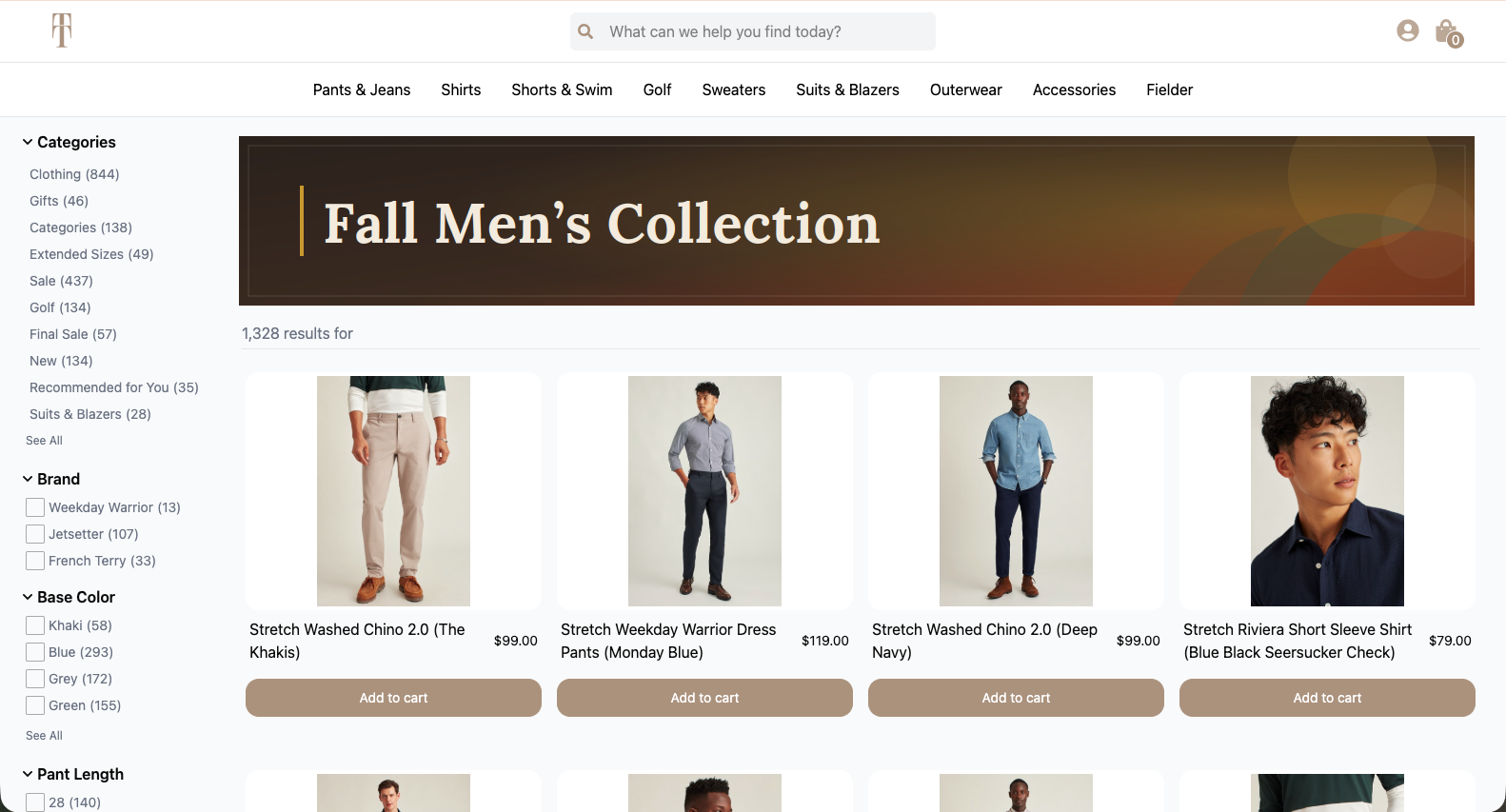
A collection called "Fall Men's Collection" featured on a fashion retailer's website
For example, merchandisers might create collections for:
- Summer wedding outfits
- Holiday gifts under $50
- New-season essentials
- Products featured in a marketing campaign
- A limited-time sale or product launch
- A trend that spans several catalog categories
Collections vs. category pages
A category page usually reflects the structure of a product catalog, such as Women → Shoes → Boots. A collection is more flexible. It brings together products from different categories without changing the catalog structure.
| Category page | Collection | |
|---|---|---|
| Structure | Follows the catalog hierarchy | Can combine products from across the catalog |
| Lifespan | Usually represents a long-term product category | Can be permanent, seasonal, or temporary |
| Membership | Products belong based on catalog category data | Products belong because they are intentionally added using AI prompts, a list of item IDs, conditions, or a combination of these methods. |
| Best used for | Best for standard site navigation | Best for themes, campaigns, occasions, trends, and curated assortments |
Collections can complement your existing category pages. You do not need to replace your catalog structure to create a new curated shopping experience.
Methods for building a collection
You can add products to a collection in several ways. Choose one method or combine methods in the same collection.
Generate collection with AI
With AI-generated collections, simply describe the assortment you want in everyday language. For example, Formal and semi-formal outfits for a summer wedding. Exclude casual clothing.
Constructor suggests products that match the description. You can review the results, remove products, regenerate the list, and save the products you want.
AI is useful when the desired assortment is based on an idea, occasion, style, or shopper intent rather than a single catalog attribute.
Learn how to use AI-generated collections
AI-generated collections require additional setup. Contact your Customer Success Manager if the AI option is not available in your dashboard.
Import item or variation IDs
Use item IDs when you already know exactly which products belong in the collection. You can upload a CSV file, paste a list from a spreadsheet, or edit the IDs directly in the dashboard.
For catalogs that use variation slicing, supported accounts can also add specific product variations. For example, only the red colorway of an item, rather than every color.
This method is best for precisely curated assortments, campaign lists, and selections prepared outside Constructor.
Additionally, you can add upcoming items and variants to a collection. Once synced to Constructor, those items will appear in the collection. This is useful when preparing a collection before an overnight, weekend, or holiday catalog update. It can be combined with collection scheduling so the assortment is ready before its planned launch.
Learn how to add items by item IDs and variation IDs
Add items using conditions
Use conditions to build a collection from product attributes or categories. For example:
categoryisdressescolorisblueORgreenbrandis notbrand A
Conditions create a dynamic collection. When catalog products start or stop matching the conditions, collection membership updates automatically. For example, if newly synced items meet a defined condition, they are automatically added to the collection without requiring manual collection edits.
This method is useful for larger assortments and collections that should stay current as the catalog changes.
Learn how to add items using conditions
Create and maintain collections via Constructor's APIYou have the option to create and maintain your collections using Constructor's Collections API.
How Constructor ranks collection results
With collection items identified, Constructor then ranks items for each user based on behavioral clickstream data. This means that each shopper will see results in a different order, with Constructor ranking products based on their attractiveness to the user.
New shoppers receive an order based on the available aggregate signals. As Constructor learns more about a shopper, the collection can become more personalized.
Your team can review collection results in Interact, inspect ranking information, and preview the experience for different shoppers or audience segments.
Merchandise collection results
Searchandising tools are available for instances where business priorities should influence the default ordering. Depending on your permissions, you can:
- Boost or bury products
- Place products in specific positions
- Slot products that match selected attributes
- Allow or block products
- Add content such as banners or creative tiles
- Show rules to selected audience segments
- Set start and end times for rules
A merchandising rule can apply to one collection, or collections can be included in a campaign that applies the same rules across multiple pages.
Learn more about merchandising
Schedule collections and item changes
Collections support two types of scheduling: collection scheduling and item set scheduling.
Collection scheduling
Define when a collection becomes available or unavailable to shoppers. This is useful for launches, holiday pages, limited-time promotions, and embargoed assortments.
You can configure:
- A start date and time
- An end date and time
- Only a start date
- Only an end date
Learn how to schedule a collection
Item set scheduling
Scheduling item sets lets you change the products in a collection over time while keeping the same collection shell. For example, a Today’s Deals collection can automatically show a different assortment each day.
Learn how to schedule item sets
Add collection metadata and page content
Collections can include metadata your implementation team can use to build the shopper-facing page. Metadata can include page titles, descriptions, images, and other content required by your storefront.
This can help teams create richer landing pages and meet SEO requirements without encoding those details into the collection’s product selection rules.
Learn how to add collection metadata
Display collections on your site
Creating a collection in the Constructor dashboard does not automatically create a page on your website. Constructor stores the collection, selects and ranks the products, and returns the collection data. Your team is responsible for retrieving that data and designing the shopper-facing experience.
To do this, your team will need the collection ID displayed in the main collections listing. This ID is generated when you or a team member create a collection.

A collection ID appears beneath the collection name
After implementation, shoppers can view the collection’s ranked products and use the filtering or sorting controls provided on your site.
Learn how to display collections on your site
Manage collections over time
From the Collections workspace, your team can:
- Edit a collection and its item-selection methods
- Update metadata and schedules
- Add or remove item IDs
- Export item IDs to CSV
- Copy a collection to another index
- Open the collection in Interact
- Merchandise the collection
- View which user most recently edited a collection
- Delete the collection
Collections built with conditions continue to adjust as catalog data changes. Manually curated and AI-generated assortments can be revisited whenever your team needs to refresh them.
Note that the ability to perform the above actions will be based on the individual user’s permissions. Learn more about user permissions.
Access the Collections workspace
Accessing the Collections workspace requires Constructor’s Collections product. Some capabilities, including AI-generated collections, variation-level curation, and scheduled item sets, may need to be enabled or require additional configuration.
If an option described here is not visible in your dashboard, contact your Customer Success Manager.
Note: If you are a merchandiser, you may not have the permissions necessary to access the Collections workspace. Please contact your internal administrator.
Updated 6 days ago