
Add future items to a collection
Merchandisers can add items that are not yet part of their catalog to collections in Constructor. These may be items that are synced overnight, over a weekend, or during a holiday. Being able to add items to a collection ahead of these syncs saves the merchandiser from having to log into Constructor during those odd hours.
Once items are live in the Constructor catalog, they will appear on the collection page.
Add future items via import
If adding a large number of future items to a collection, you can use the Import Items function on the collection page.
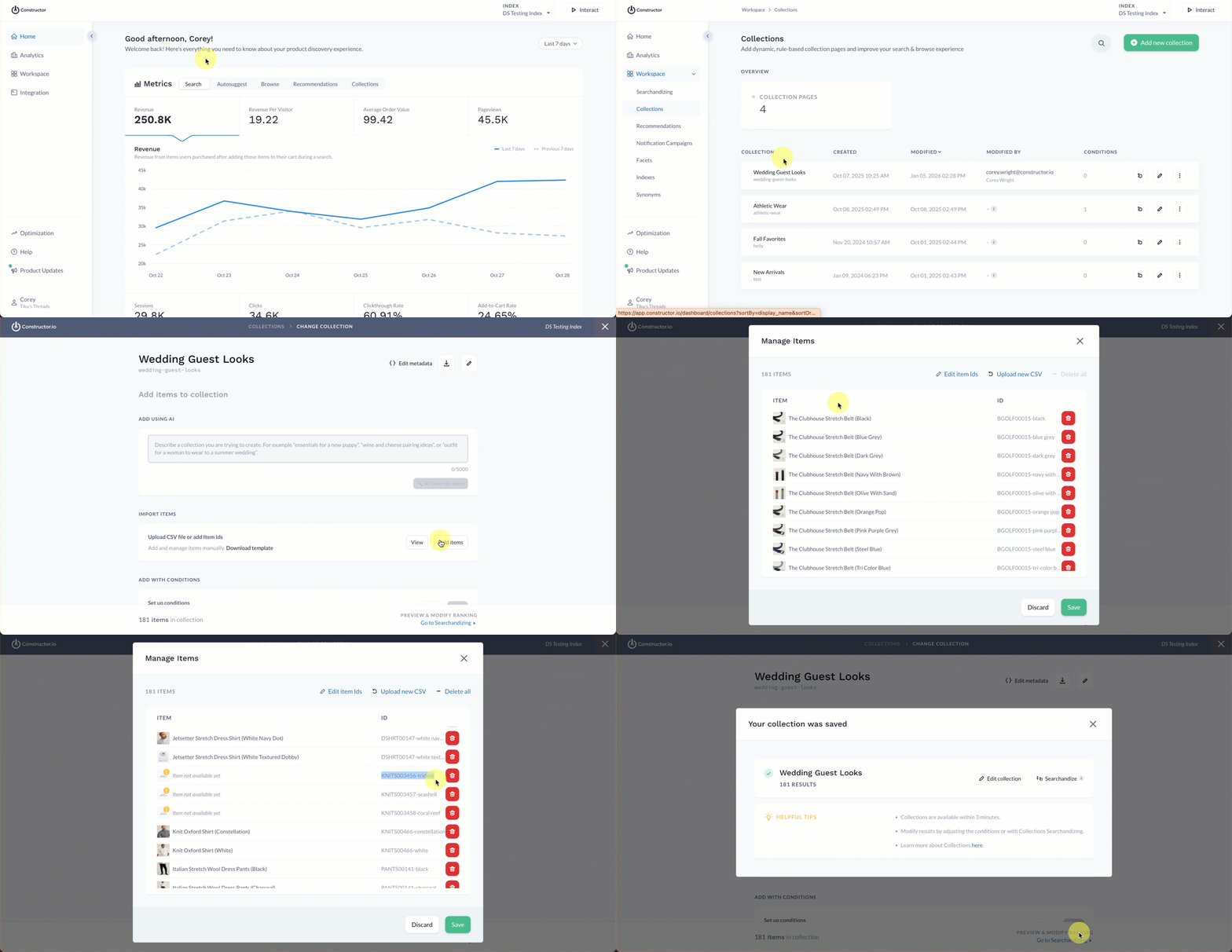
- Select Workspace in the side menu of the Constructor dashboard, then select Collections.
- Select the name of the collection to which you are adding future items. Alternatively, you can select the pencil icon on the far right of the collection row.
- Creating a new collection? If you are creating a new collection that includes future items, select + Add new collection in the top-right corner of the page.
- In the Import Items section, select Add items.
- Locate and select the CSV file you wish to import.
- Once uploaded, items will appear in a pop-up window for you to review. While future items will appear without an image and as Item not available, you can identify them by their item id.
- Select Save in the bottom-right corner of the pop-up.
Add future items manually
You also have the option to use a collection’s Edit Item IDs option to paste a list of future item IDs. This can be helpful for quickly adding a handful of items and for adding a large list of items.
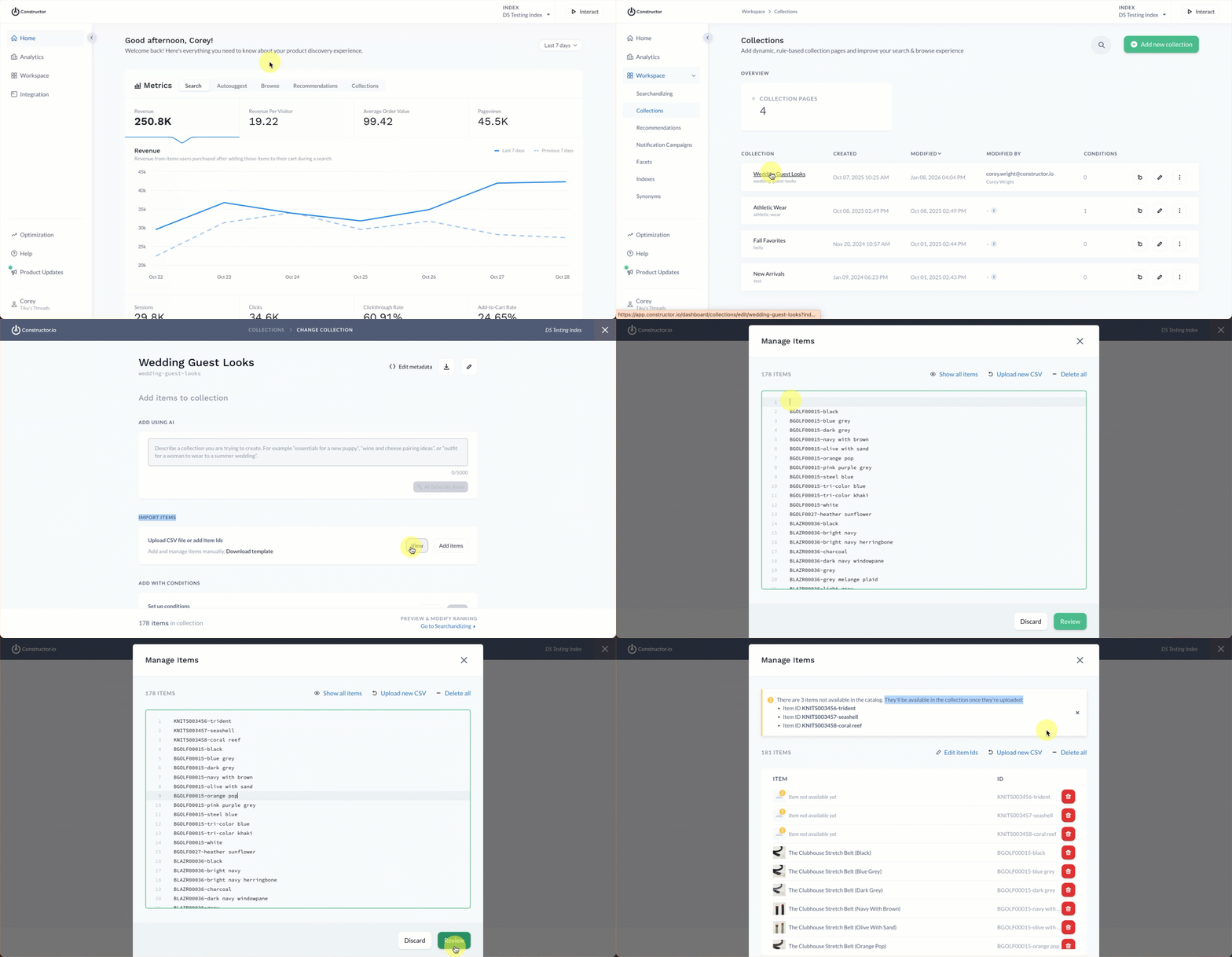
- Select Workspace in the side menu of the Constructor dashboard, then select Collections.
- Select the name of the collection to which you are adding future items. Alternatively, you can select the pencil icon on the far right of the collection row.
- In the Import Items section, select View.
- Select Edit item IDs at the top of the pop-up.
- This transforms the list into an editable field. Here you to manually enter future item IDs or paste a copied list of future item IDs.
- When done, select Review in the bottom-right corner of the pop-up.
- The pop-up will refresh to show your added future items at the top of the item list, along with a message that the items will appear in the collection once they exist in your Constructor catalog.
- Select Save in the bottom-right corner of the pop-up.
Updated 9 months ago