
Configure sort options
Note: Sort option configuration within the dashboard is available to Admin users by default. You can grant access to additional users by assigning explicit Sort Options permissions. Learn more in our user permissions documentation.
Sort options let shoppers organize large result sets on their own terms (e.g., by price, rating, relevance, etc.). Configuring sort options effectively reduces friction for shoppers and supports a company’s broader merchandising goals, such as making price-sensitive results easier to navigate or surfacing newer inventory for trend-driven categories.
How sort option configuration works
When you create or update a sort option, the following happens:
- Constructor stores a sort option configuration in that sort option record. This record contains all fields defined when creating or updating the sort option.
- Note: The process for configuring sort options in the dashboard includes guardrails to prevent suboptimal configuration.
- An index rebuild occurs. Creating or updating a sort option triggers an index rebuild. Rebuilds typically take a few minutes.
- Sort option becomes available for the Sort drop-down list. Once defined, the option can be fetched and returned in an API response. You can preview sort options in Interact.
ImportantSort options are scoped to a specific index section (e.g.,
Products,Content,Search Suggestions, etc.). When you create sort options in the dashboard, they currently default to theProductssection. To create sort options for a different section, you’ll need to create them via the API and specify the section.
Sort option configuration options
Best practices
Plan and configure sort options before launch
You must first configure sort options before you can render them on your site. This is important if you are implementing Constructor, or if you wish to offer a sort option to shoppers for a particular promotion (e.g., a New sort option that lets shoppers sort by the latest product drop).
Ensure you have configured sort options in advance of when you expect them to render them or have them appear, as an index rebuild is necessary and usually takes a few minutes.
Start with a practical baseline set
Most search and category pages are well served by the following sort options:
Recommended
- Most Relevant (default, descending)
- Price: Low to High (price, ascending)
- Price: High to Low (price, descending)
Configuring sort options for multiple pricing groupsIf you have account or region-based pricing groups (or other similar structures), then you will want to configure any price-based sort options for each pricing group. Learn more in Account of multi-region and price group setups below.
Optional
- New Arrivals (release date descending, or an explicit
is_new-style field if that is what your catalog supports) - Best Sellers (only if you have a catalog field for this, such as a revenue-based or
best_sellingattribute) - Avg Reviews (only if you have a catalog field for this, such as
avg_rating)
Constructor uses Most Relevant as the default, fallback sort option. Here, Most Relevant is Constructor’s attractiveness ranking.
Keep naming and ordering intentional
- Use a stable internal identifier in the Sort by field and a shopper-friendly label in the Display name field (for example,
price_ascand Price: Low to High). - Set a deliberate Position order so the dropdown is predictable for shoppers.
- Use Visibility to hide niche or experimental sort options until you are ready to surface them.
Customize the display name for the default Relevance sort option
If desired, you can customize the display name and position of the default Relevance sort option. The display name is how the option appears in the sort drop-down on your site. For example, “Most Relevant”.
To customize, create the sort option in the dashboard and ensure the sort_by and path_in_metadata fields are set to relevance.
Editing sort option details
Upon saving a sort option, only certain fields remain editable. Both the Sort by identifier and Sort order cannot be edited in either the dashboard or via our API. To update either of those values, delete the existing sort option and create a new one.
Account for multi-region and pricing group setups
If your catalog supports multiple regions/currencies or multiple pricing groups (for example, B2B vs B2C price books), make sure each price-based sort option points to the correct field via path_in_metadata for that specific context. In practice, this means you should create separate “Price: Low to High” and “Price: High to Low” sort options for each region or pricing group, with path_in_metadata mapped to the corresponding localized/group price field (e.g., price.usd, price.eu, price_b2b, etc.).
Sorting on a base-currency or default consumer price field when the shopper is in a different region or pricing group can produce misleading rankings. As a best practice, also ensure your storefront returns the appropriate sort option at request time (and does not display non-applicable price sorts in the UI), so shoppers only see and use the pricing logic intended for their context.
Learn more in our Dynamic attributes by customer type article.
Configure sort options
Step 1: Navigate to sort options
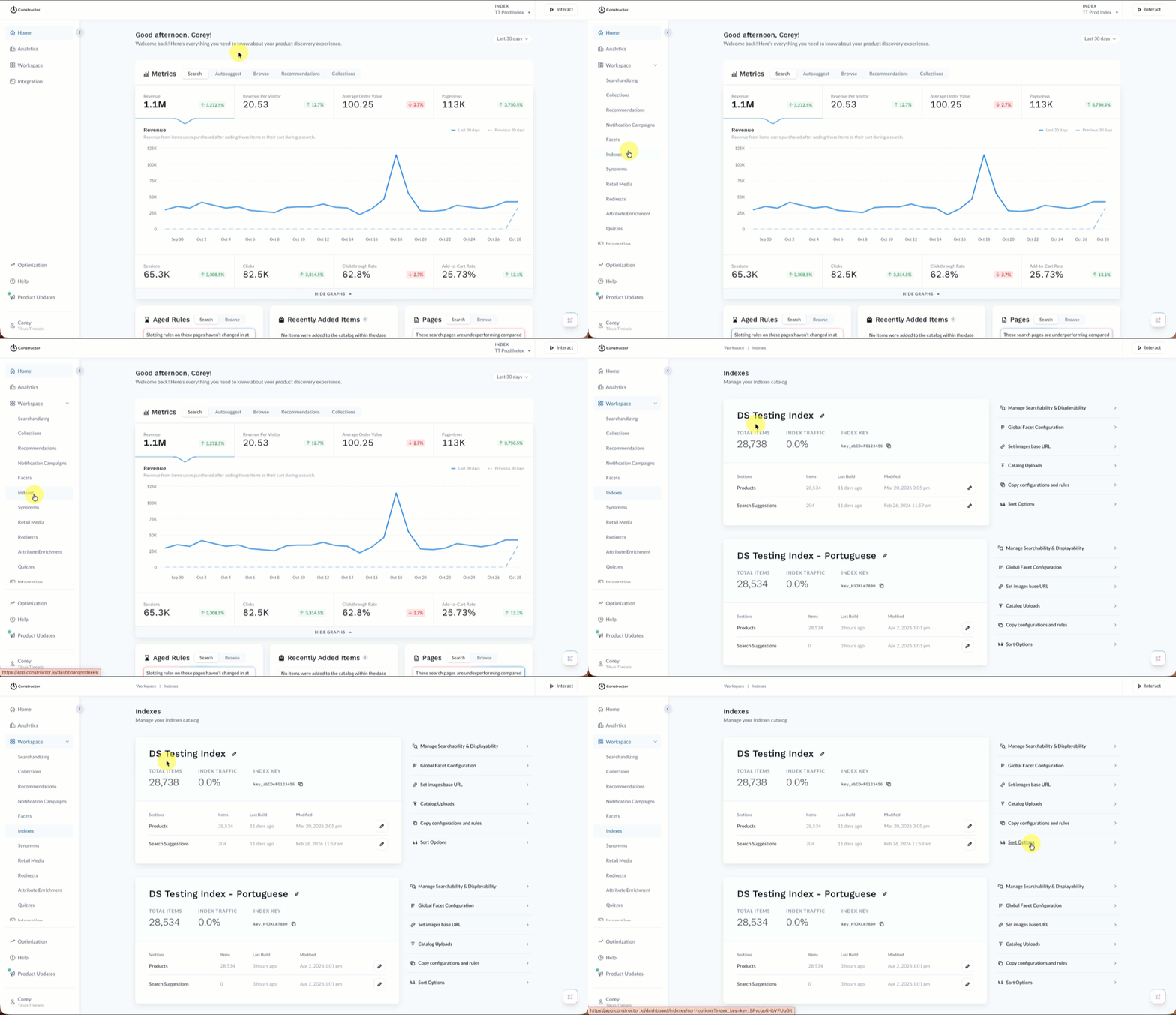
- Select Workspace in the side menu of your Constructor dashboard, then select Indexes.
- Locate the index you wish to configure.
- Select Sort Options to the right of that index.
Step 2: Create a sort option
When you navigate to the Sort Options listing, you will see all sort options configured in the dashboard and via API. You can create up to 50 sort options for each index.
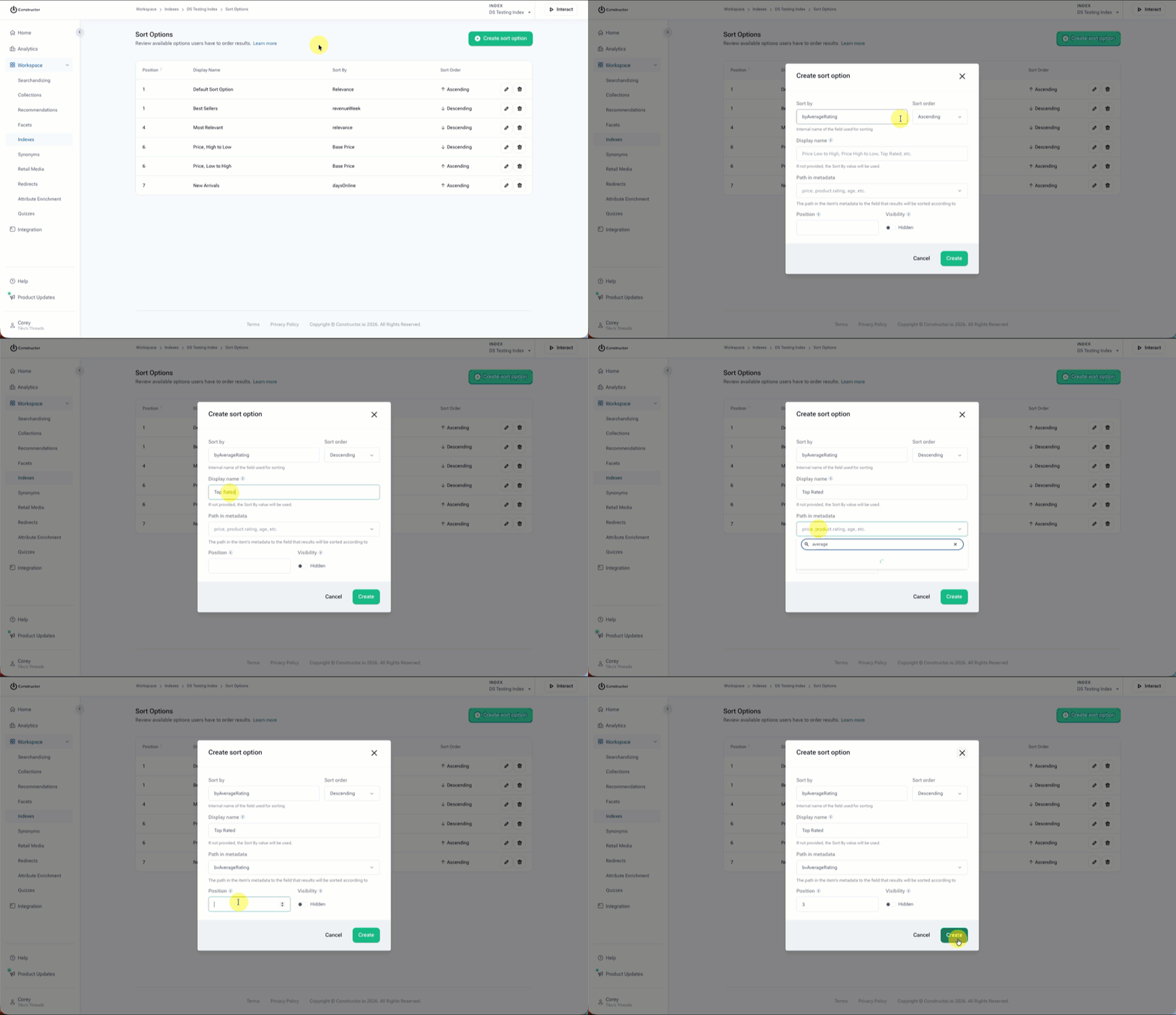
- Select Create sort option in the top-right corner of the page.
- On the pop-up, complete the following fields:
- Sort by: Enter the internal identifier for this sort order (e.g.,
price_ascorbyAvgRating). Once saved, this field cannot be changed. - Sort order: Specify whether results should appear in ascending (e.g., low to high, A-Z, 0-9, etc.) or descending (e.g., high to low, Z-A, 9-0, etc.) order. Once saved, this field cannot be changed.
- Display name: Enter the sort option name you wish for shoppers to see in the Sort drop-down list on a results page.
- Path in metadata: Enter the catalog field to sort on (e.g.,
price,rating, orproduct.rating. You can search for one using the search bar that appears when you select this field. Options filter as you type. - Position: Specifies the option's position in the API response. The API returns options in ascending order based on this value.
- Note: Multiple sort options can have the same position number, however we recommend assigning. unique values whenever possible. If two sort options with the same position are returned/visible, Constructor will display order options based on their “created by” date, with the oldest sort option appearing first.
- Visibility: Enable the Hidden toggle to hide the sort option from shoppers. For example, hiding a
Newsort option between product launches.
- Sort by: Enter the internal identifier for this sort order (e.g.,
- Select Create in the bottom-right corner of the pop-up.
Update an existing sort option
The Sort Options listing contains all sort options created in the dashboard and via API. From the dashboard, you can update sort options originally created via API.
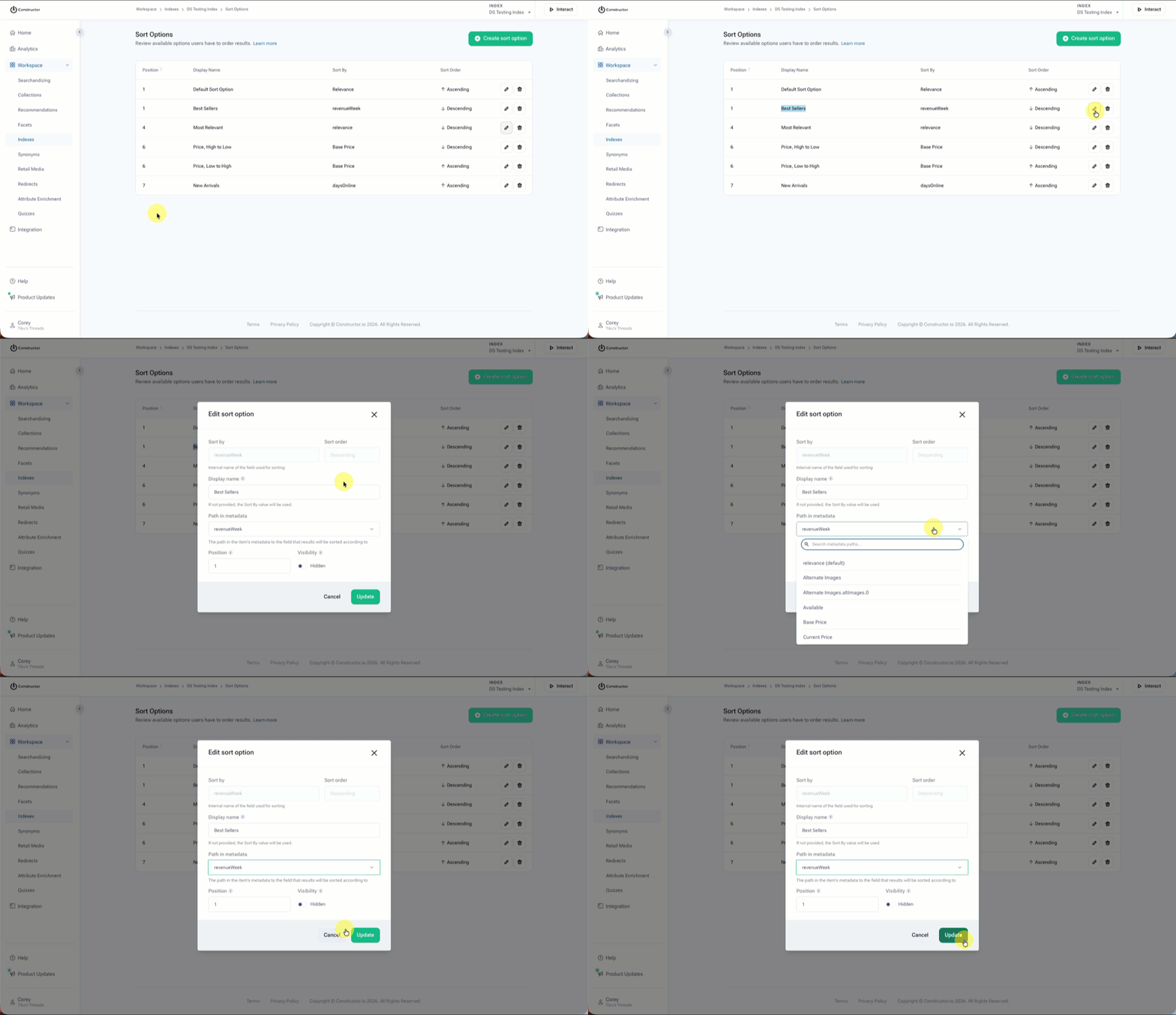
- On the Sort Options page, locate the sort option you wish to update.
- Select the pencil icon on the far right of the option row.
- On the pop-up, update fields as desired.
- Note: Once you create a sort option, you cannot change the Sort by identifier and Sort order (in the dashboard or via API). To update either of those values, delete the existing sort option and create a new one.
- Select Update in the bottom-right corner of the pop-up.
Delete a sort option
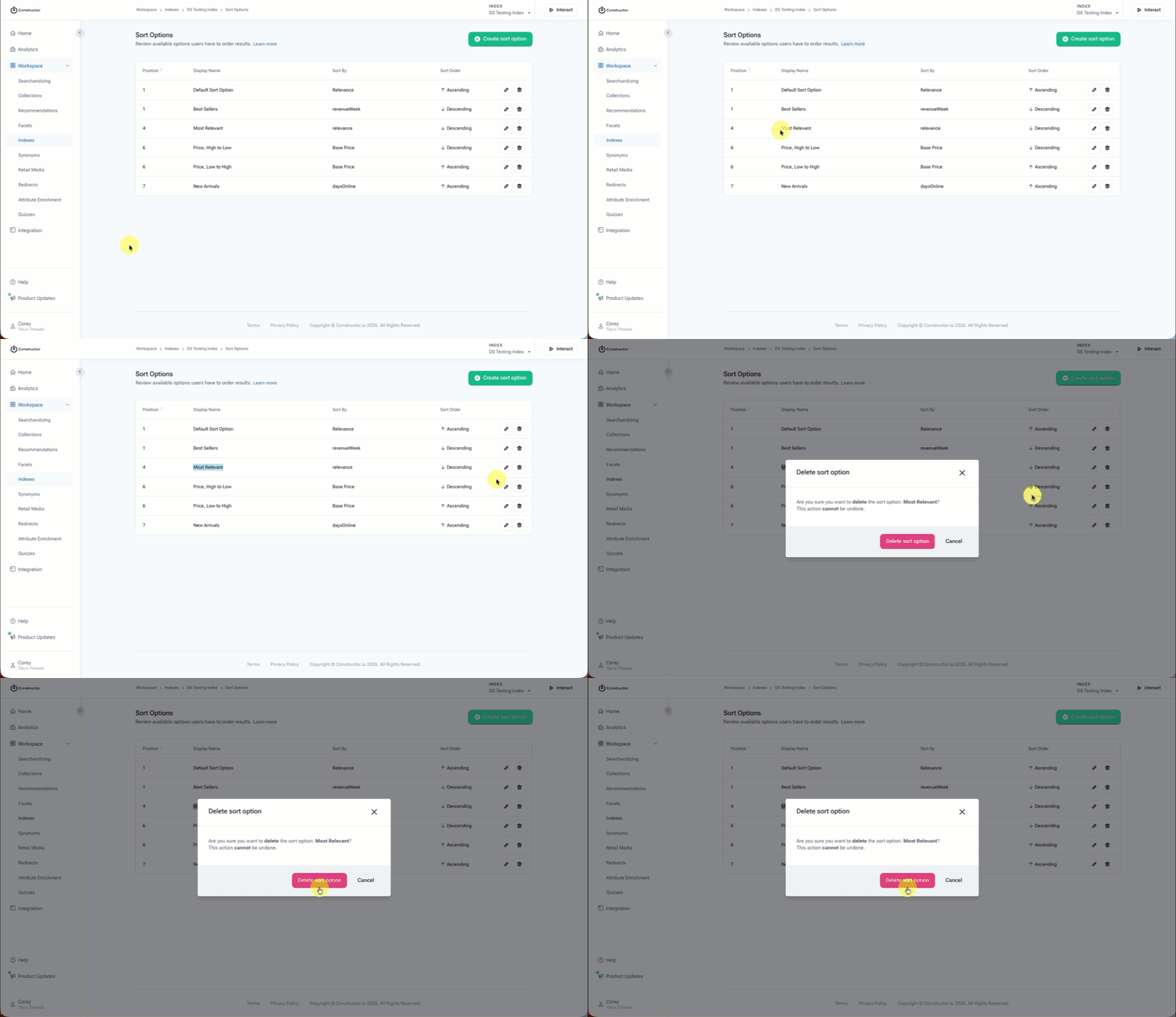
- On the Sort Options page, locate the sort option you wish to delete.
- Select the trashcan icon on the far right of the option row.
- Select Delete sort option on the pop-up to confirm your action.
Preview sort options in Interact
Once you have configured sort options, you can preview them in Interact.
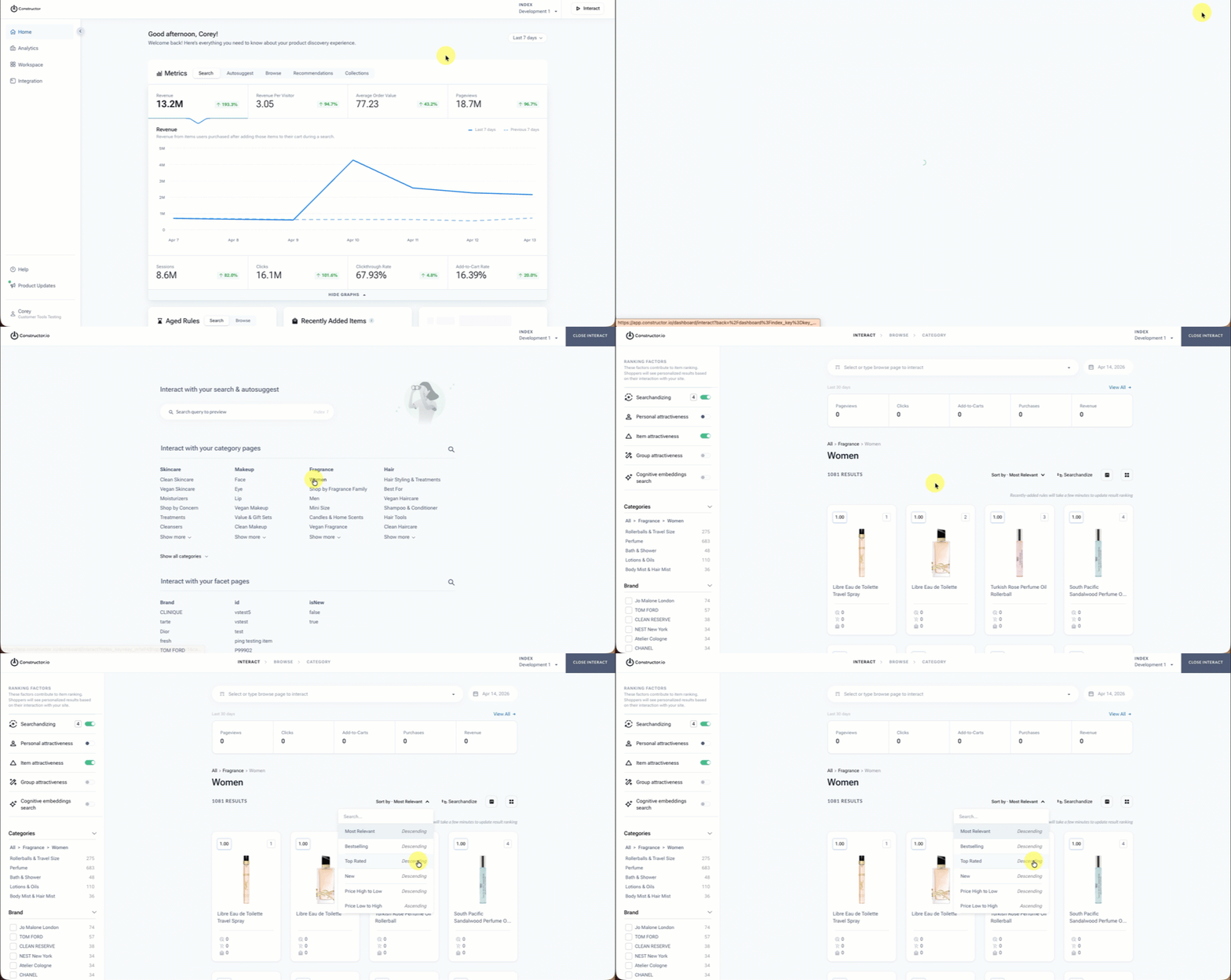
- Select Interact in the top-right corner of the Constructor dashboard.
- Enter a search term you wish to preview, or select a browse category, collection, or facet page.
- Locate the Sort by drop-down above the product grid.
- Confirm that sort options are appearing and behaving as expected.
Updated 6 months ago