
Troubleshooting tracking issues
We'd love your feedbackWe’d love to hear about your experience with the DAVE extension. Your feedback helps us understand what’s working and where we can improve. Share your feedback with our team.
If Constructor's Data Attributes Validator Extension (DAVE) reports missing attributes, can’t find expected elements, or returns results that don’t match the page, you can use its built-in tools to investigate and resolve the issue.
Don't have Constructor's Data Attributes Validator Extension? Install DAVE from the Chrome Web Store.
Debugging tools
Log an element in the browser console
Some checks in DAVE include logging the related element to the browser console so you can inspect it directly in DevTools. This helps with:
- Confirming whether an attribute is truly missing versus just difficult to find.
- Verifying the attribute exists on the correct element (e.g., container, item tile, button, etc.).
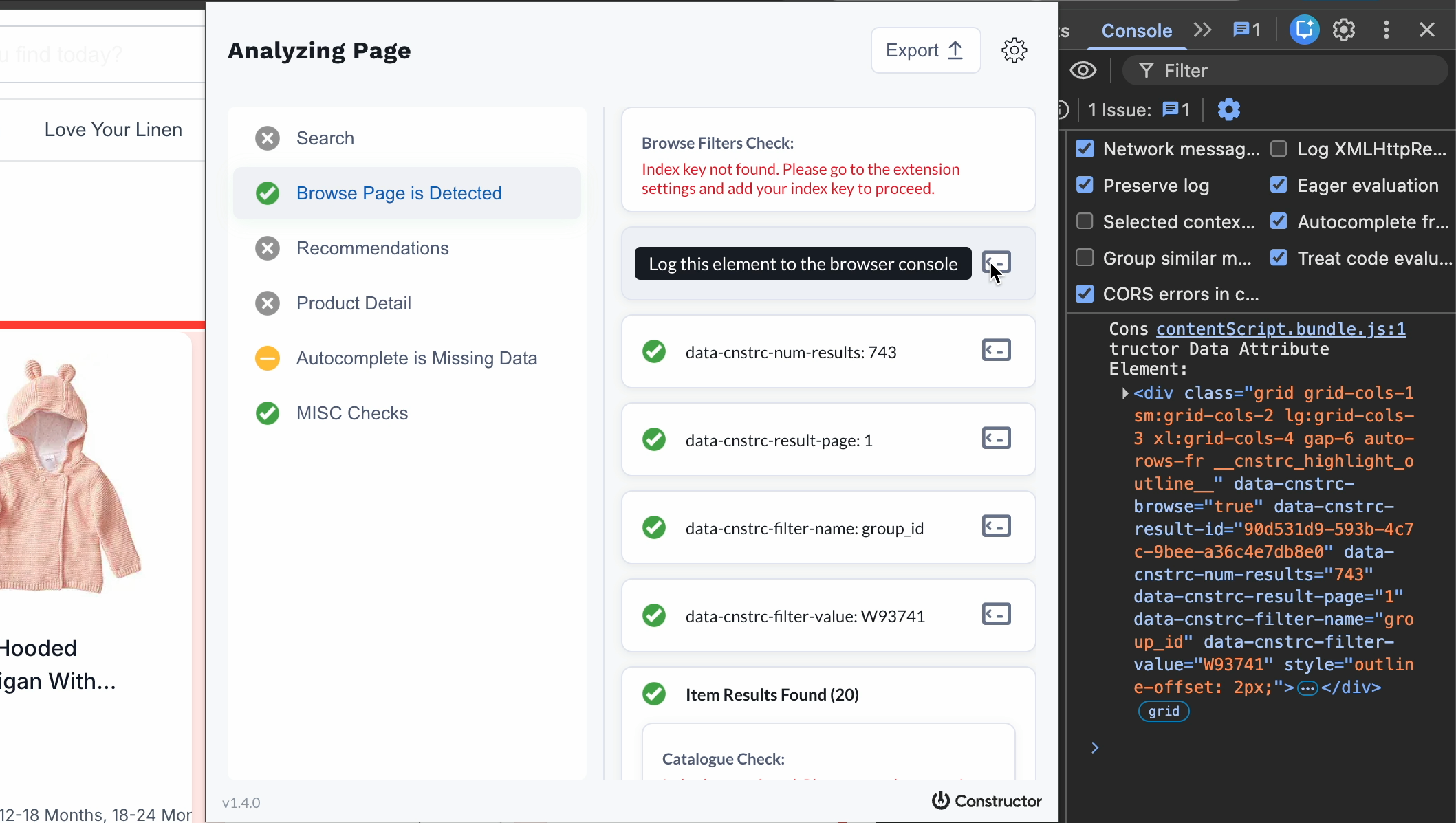
- Open console tools.
- Launch DAVE from your browser toolbar.
- Navigate to the correct page type.
- Select the console icon to the right of the desired element name.
- Review whether elements contain the expected
data-cnstrc-*attributes and values.
Highlight elements
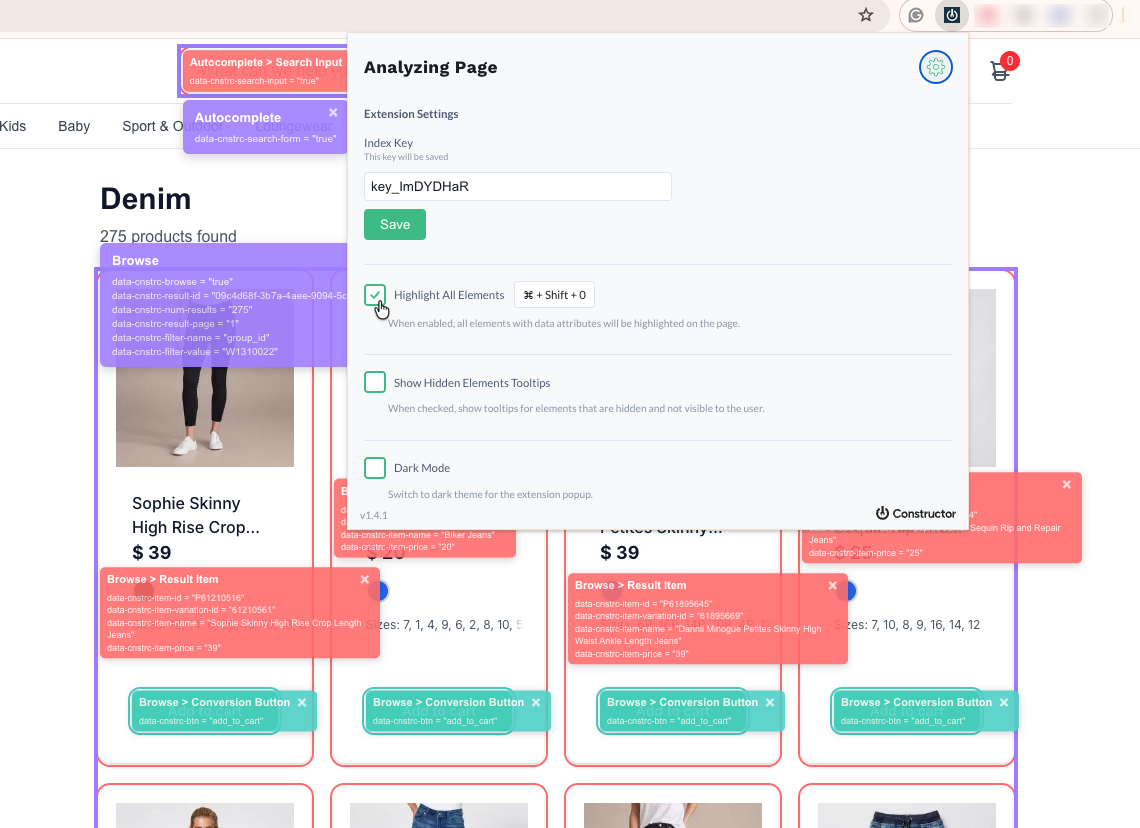
Enable the Highlight all elements setting to visually confirm element assignments. This helps with:
- Confirming DAVE is targeting the same UI component you expect.
- Spotting cases where markup exists but is attached to a wrapper element you did not intend.
Show hidden elements tooltips
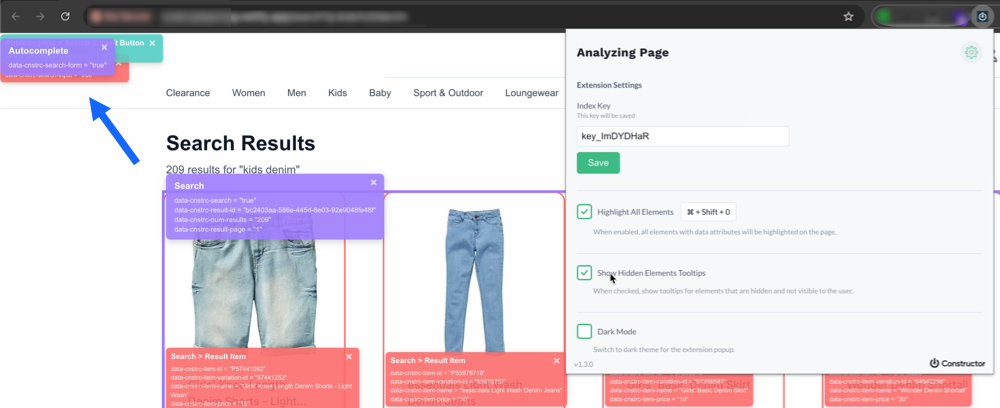
Enable the Show hidden elements tooltips setting to visually confirm hidden elements (drawers, off-screen carousels, collapsed panels, etc.). This helps with:
- Diagnosing “it exists in code but not on the page” scenarios.
- Avoiding false assumptions when the element is present but hidden by CSS/state.
Resolve common issues
Catalog elements are not showing
Some validations can depend on DAVE detecting the correct index key. If the index key is missing or incorrect, then checks may fail or appear incomplete. Learn how to update the key, or follow the steps below.
Steps:
- Launch DAVE from your browser extension menu or bookmarks bar.
- Select the gear icon in the top-right corner of the extension window.
- Locate the Index Key field at the top of the extension window.
- If the index key is missing, enter the correct index key for the site.
- Select Save.
If it still fails:
- Confirm the environment is correct (i.e., production vs. staging can use different index keys).
- Confirm the page has fully loaded.
- Confirm whether populated item IDs exist in the synced catalog.
DAVE says an attribute is missing, but you can see it in the DOM
This can happen if the attribute is on a different element than DAVE expects, or the page context is not what DAVE detected.
Steps:
- Use DAVE’s Log element tool (if available) to jump to the targeted element.
- In the DevTools Elements section, verify:
- The attribute name is correct (e.g., spelling, dashes, prefix).
- The attribute is on the correct element (e.g., container vs. item vs. button).
- Confirm you are validating the correct page type:
- Search results page vs a “search-like” listing page.
- Browse category page vs a static collection page.
DAVE cannot find Autocomplete or Recommendations
These UI modules might be lazy-loaded, gated behind consent, rendered only after interaction, or loaded in an iframe or shadow DOM (implementation-dependent).
Steps:
- Make the module visibly render first:
- For Autocomplete, select the search input, begin typing, and ensure suggestions appear.
- For Recommendations: Scroll to the module and wait for it to populate items.
- Re-launch DAVE and validate again.
- If your site uses consent banners, accept consent and refresh.
If it still fails:
- Try enabling Show hidden elements tooltips to see if the module is present but hidden.
- Confirm ad blockers or privacy extensions are not blocking scripts.
Results differ between staging and production
It is common for DAVE to show different results between staging and production, even when the pages look similar. Small differences in build versions, feature flags, consent tooling, third-party scripts, or environment-specific configuration can change what is rendered in the DOM, which changes what DAVE can detect and validate.
Steps:
- Confirm you are using the correct environment URL.
- Confirm the same frontend build is deployed.
- Clear cache and do a hard refresh.
- Validate the same page path with the same user state.
Escalate issues to Constructor
Before reaching out, run through this quick checklist to make sure DAVE is validating the page in the right state and that the issue is reproducible:
- Confirm the page is fully loaded and the relevant UI is visible (e.g., autocomplete is open, recommendations have rendered).
- Confirm the index key is detected or correctly set.
- Verify the attribute on the rendered DOM in Chrome DevTools (not only in templates or source code).
- Re-test with blockers turned off, including ad blockers and script blockers.
When requesting help, include:
- The page URL (or step-by-step reproduction instructions).
- Which DAVE section failed (e.g., Search, Browse, PDP, Autocomplete, Recommendations, etc.).
- Screenshot(s) of the DAVE output (or the exported report).
- The extension version from the Settings menu.
Updated 18 days ago