
Schedule item sets
With item set scheduling, merchandisers can plan multiple item configurations within a single collection, each with its own start and end date. When a scheduled window begins, the correct items appear automatically, with no manual intervention required.
This is especially useful for merchandisers who manage recurring promotions, daily deals, or rotating collections where the item lineup changes on a predictable schedule.
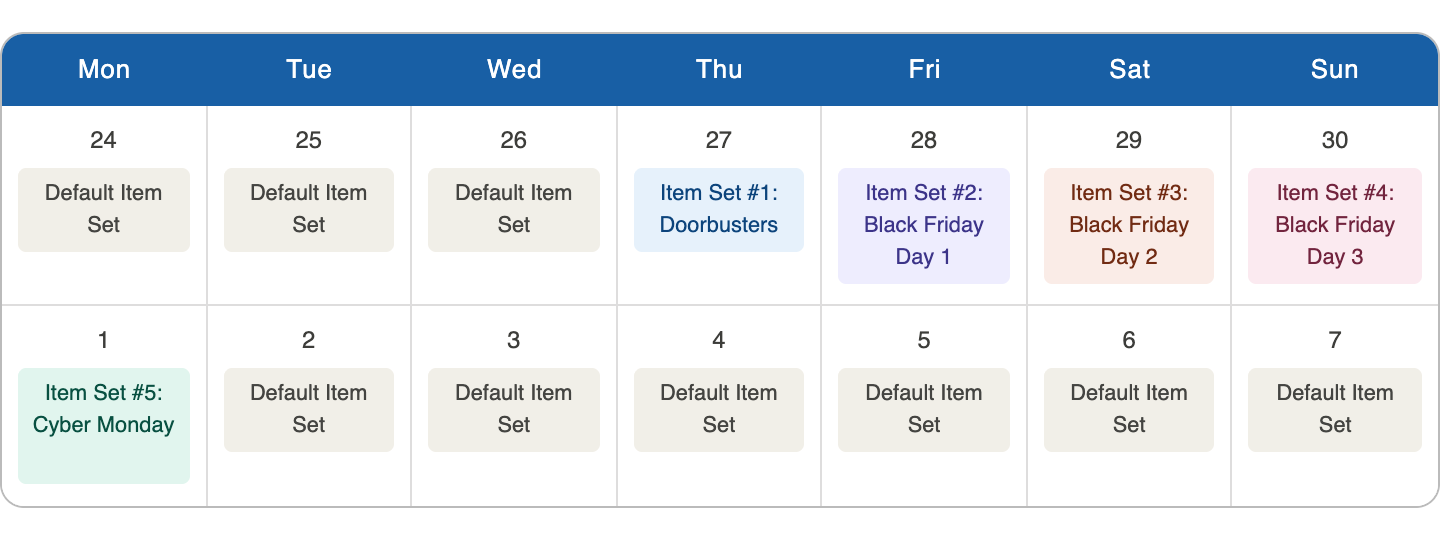
Example item sets scheduled for specific days in a “Black Friday” collection
How item set scheduling works
- Merchandisers create multiple item sets within a collection. Instead of logging in each morning to swap items, merchandisers can create and schedule all item set configurations in advance. Set up Monday's deal, Wednesday's rotation, and Friday's promo in one session, then step away.
- Current time determines which set is active. When the current time falls within an item set’s schedule window, then that set becomes the active, displayed item set for the collection.
- The default item set activates between scheduled sets. Every collection should include a default item set that activates whenever there is no active item set. That way, a collection is never left empty or showing stale content. Default item sets are the initial items you add to a collection before you create item sets.
- If desired, merchandisers create time-boxed rules to merchandise item sets. Generally, merchandising rules for a collection apply to the collection as a whole, not specific item sets. To apply rules (e.g., boost, bury, slot, content, etc.) to a specific item set, create those rules with the exact same schedule as the item set. Learn more here.
Important to know
- Transitions between item sets are processed at short intervals, so an item set scheduled to activate at a specific time may take up to 2 minutes to go live in the collection. The outgoing item set stays active until the transition finishes.
- Item set schedules cannot overlap. Each item set must have its own distinct, non-overlapping window. Only one item set can be active at a time.
- You cannot schedule an item set within a scheduled collection outside of that collection’s schedule window.
- You can preview item sets in Interact by setting the date in the top-right corner of the page to a date within an item set’s window. Expired collections are not available for preview.
Create an item set
Step 1: Navigate to the desired collection
You can schedule item sets during the overall collection creation process or after you create a collection.
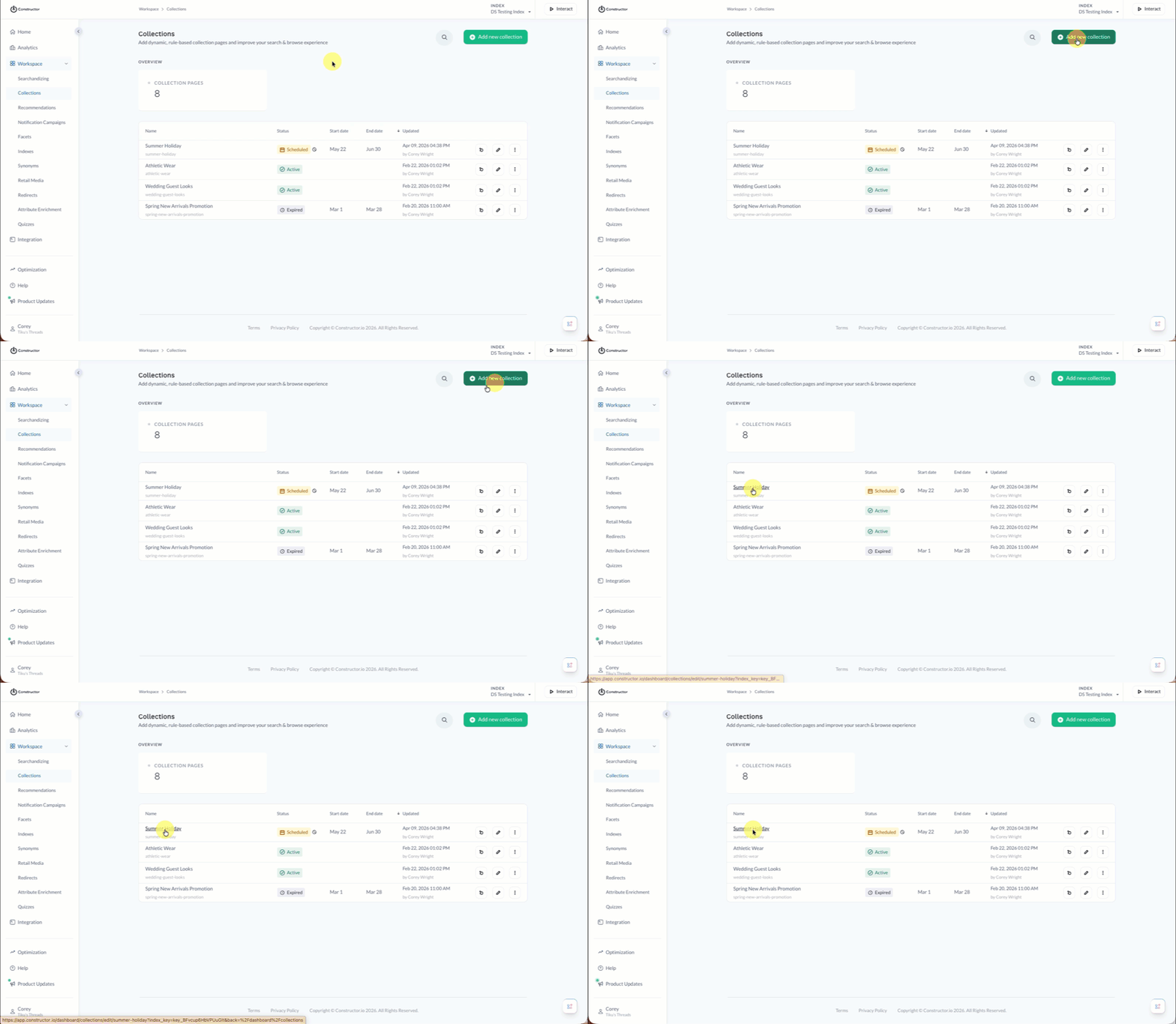
- To create a new collection, select Add new collection in the top-right corner of the Collections page.
- To add item sets to an existing collection, select that collection from the Collections listing. You can select the collection name or select the pencil icon on the far right of the collection row.
Default item setIf scheduling item sets, then we strongly recommend that you also create a default item set for your collection. This is the base set of items you add to a collection. Having a default item set ensures that your collection always returns items, even when there is no active item set.
Step 2: Schedule the item set
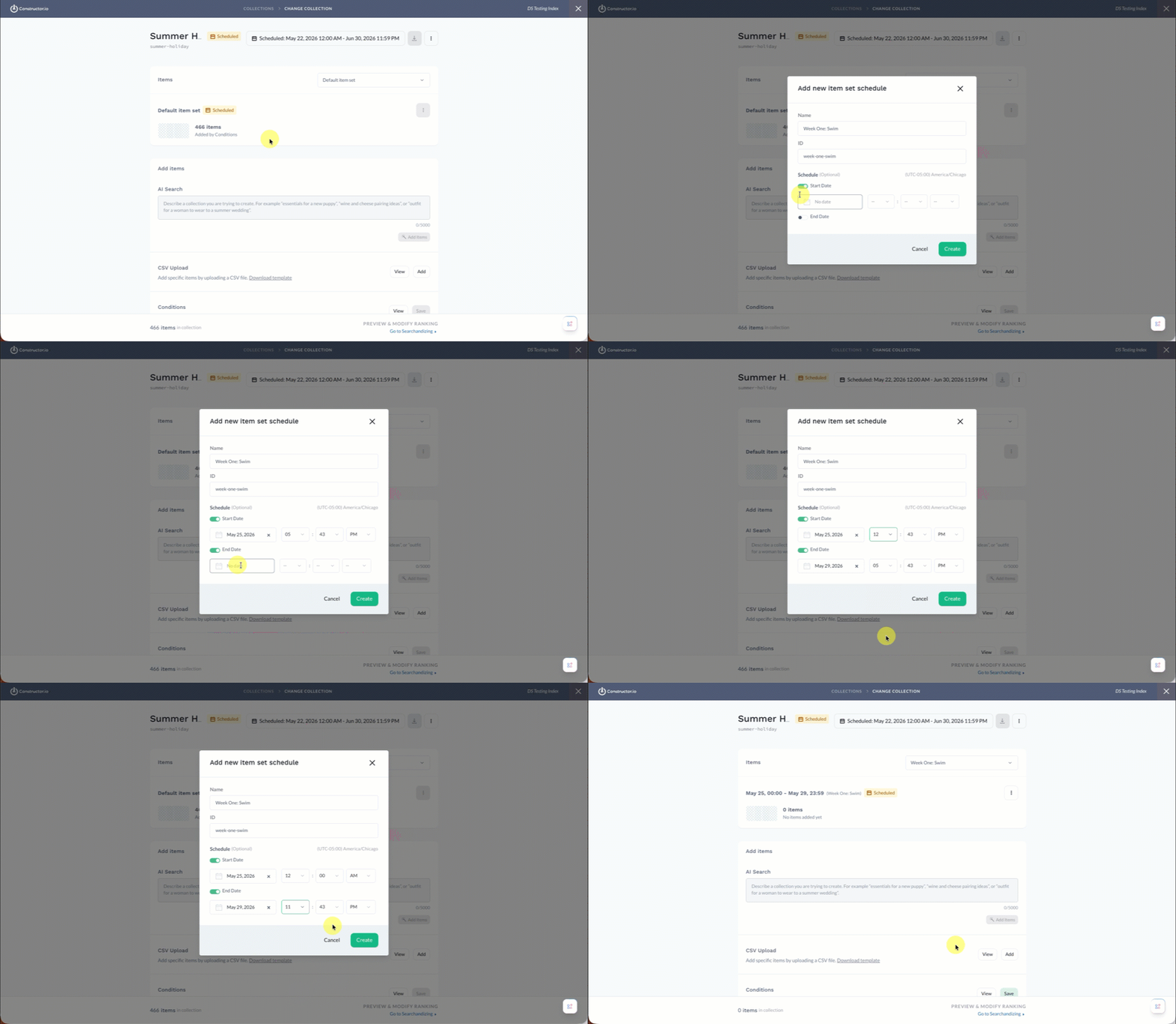
- Select the Default item set drop-down menu in the top-right corner of the Items section.
- Select Create new item schedule at the bottom of the drop-down list.
- On the pop-up, enter the item set Name. The ID will auto-populate.
- Note: IDs should be unique among all collections and item schedules. For example, if there is a collection called
black-friday-deals, you cannot have an item set calledblack-friday-deals.
- Note: IDs should be unique among all collections and item schedules. For example, if there is a collection called
- To enter a start date, select the Start Date toggle.
- Use the calendar picker to select the specific start date for the item set.
- Use the drop-downs to the right of the date field to enter the specific start time of the item set. This includes hour, minute, and AM/PM options.
- To enter an end date, select the End Date toggle.
- Use the calendar picker to select the specific end date for the collection.
- Use the drop-downs to the right of the date field to enter the specific end time of the collection. This includes hour, minute, and AM/PM options.
- Select Create in the bottom-right corner of the pop-up.
Step 3: Add items to the item set
You add items to the item set the same way you’d add items to a collection without item sets: using an AI prompt, uploading a CSV import, and/or applying dynamic conditions.
You can review these methods in our Create a collection article.
Note: To create an AI-generated collection, you must first implement AI collections. Please contact your Customer Success Manager for more information.
Step 4: Add more item sets
Repeat Steps 2-3 to add additional item sets to the collection. New item sets automatically save to the collection.
As a reminder:
- Item set schedules cannot overlap. Each item set must have its own distinct, non-overlapping window. Only one item set can be active at a time.
- If the parent collection has a schedule, then you cannot schedule an item set outside that schedule window.
- Generally, merchandising rules for a collection apply to the collection as a whole, not specific item sets. To apply rules (e.g., boost, bury, slot, content, etc.) to a specific item set, then create those rules with the exact same schedule as the item set. Learn more here.
Preview an item set
You can preview item sets by setting the date in the top-right corner of the page to a date within an item set’s window. Expired collections are not available for preview.
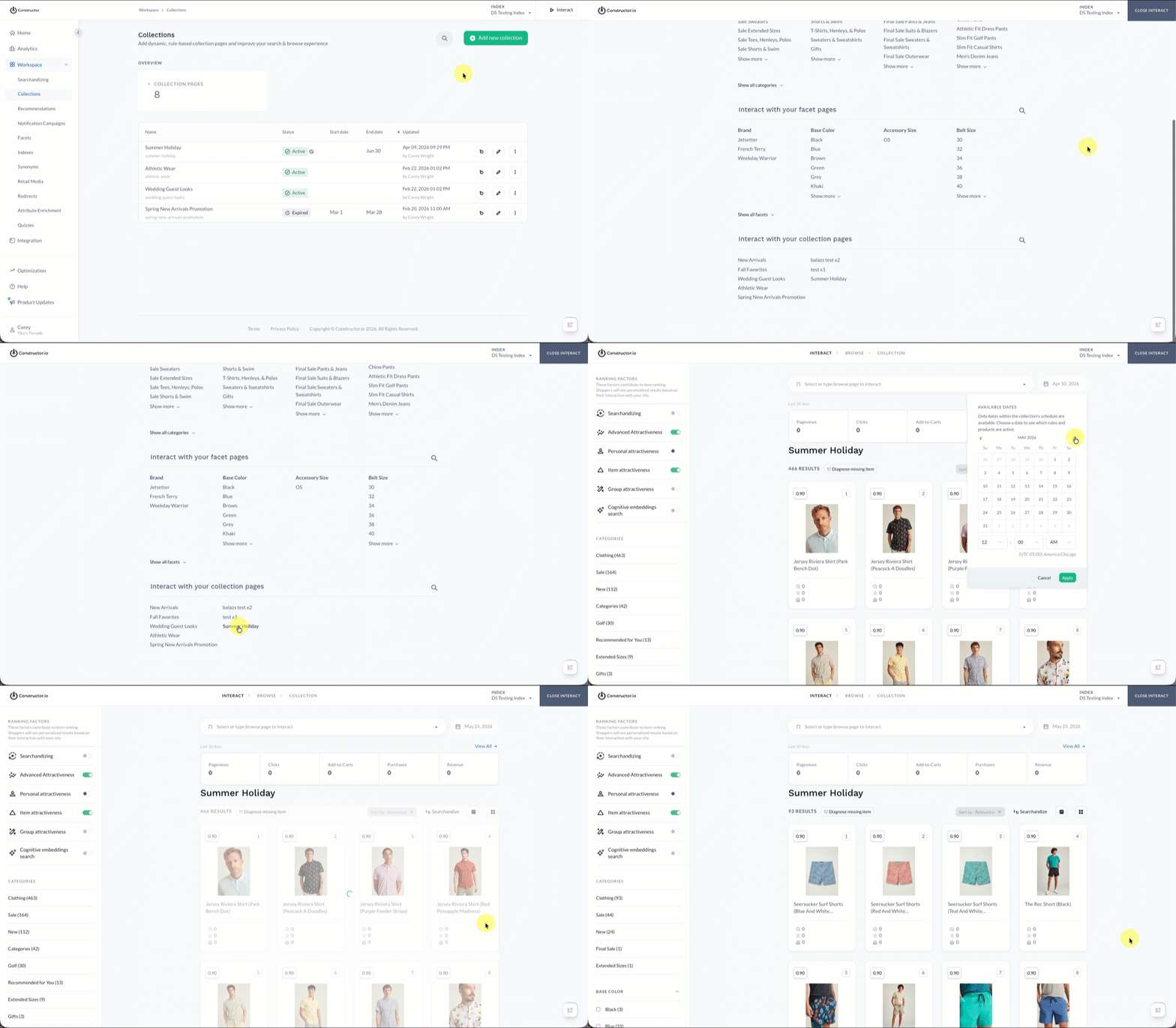
- Select Interact in the top-right corner of the Constructor dashboard.
- Locate and select the collection you wish to preview. Collections are listed at the bottom of the initial Interact page.
- Select the date field in the top-right corner of the collection preview page. This launches a calendar date picker.
- On the calendar date picker, select a date within the item set schedule.
- Select Apply in the bottom-right corner of the picker.
- Results will refresh and display ranked results for the item set.
Updated 5 months ago