
Badges
Note: Available for indexes with badges enabled. Learn more about badges in our documentation.
Badges, such as Bestsellers, New, and social proof badges, help shoppers quickly spot new or popular items. These visual labels appear directly on product tiles and are powered by Constructor, which automatically applies the right badge to the right item at the right time.
Using Interact, merchandisers can see how badges are being applied across search and browse pages.
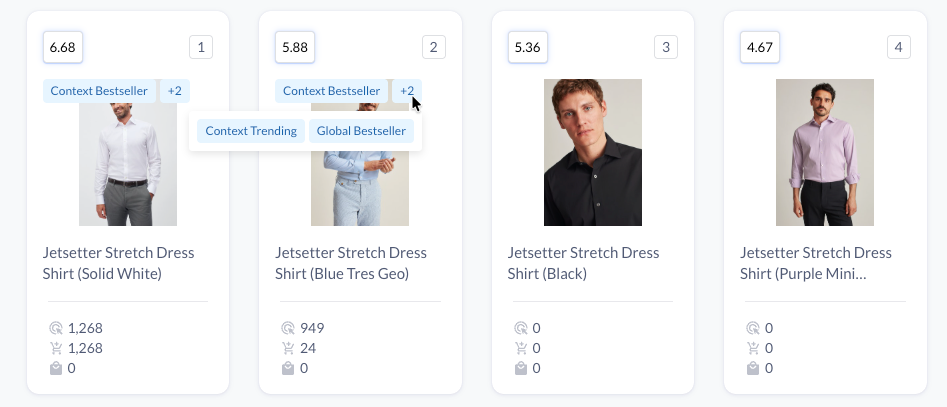
Multiple badges display on item tiles in Interact
For enabled indexes, merchandisers can:
- See which items have badges: Instantly view all badged items on any search or browse page, along with their positions in the results.
- View badge candidates: See which items are candidates for multiple badges. Constructor applies a priority list to decide which single badge to display to the shopper.
- Understand why: Hover over any badge to see a detailed explanation of why that item received it (e.g., "Bestseller: Top 15% of items by purchases over the last 30 days").
- Review shopper experience: Quickly verify that badges are being applied as expected and provide feedback when they're not.
Important to know
- Interact displays all badges returned for items on a particular search or browse page. How badges are rendered on a company’s website depends entirely on their implementation and website design.
- Whether Constructor assigns an item a badge depends on several factors, including:
- Whether an item meets criteria for a specific badge,
- Ranking scores for all items eligible for a badge,
- Max. number of items per badge type (as defined by the company)
- For example, an item can have a high purchase count but still be ranking lower and therefore not receive a
Bestsellerbadge.
- For example, an item can have a high purchase count but still be ranking lower and therefore not receive a
- The Badge count in Interact shows the total number of badges on the current results page.
- For example, if you are viewing the first page of the results and the counter displays 6, that means there are 6 badges on that page, but there might be more on subsequent pages.
Available badges
Constructor offers multiple badge types:
- Standard badges: Bestseller, Trending, New.
- Social proof badges: In X carts, Viewed X times this week, or Purchased X times this week, etc.
- Attribute-based badges: Sustainable, Vegan, All-Weather, Limited Edition, Easy Care, etc.
For standard badges, there are two levels: global and context-dependent.
- Global badges are calculated and assigned based on item performance across all search queries and browse categories. Learn more about global badges here.
- Context-dependent badges are calculated and assigned based on specific queries or categories. Learn more about context-dependent badges here.
Within Interact, badges will display the badge type + level, for example, Global Bestseller or Context Trending. However, when rendering badges for the end users, badges will appear as Bestseller, Trending, or New.
View badges in Interact
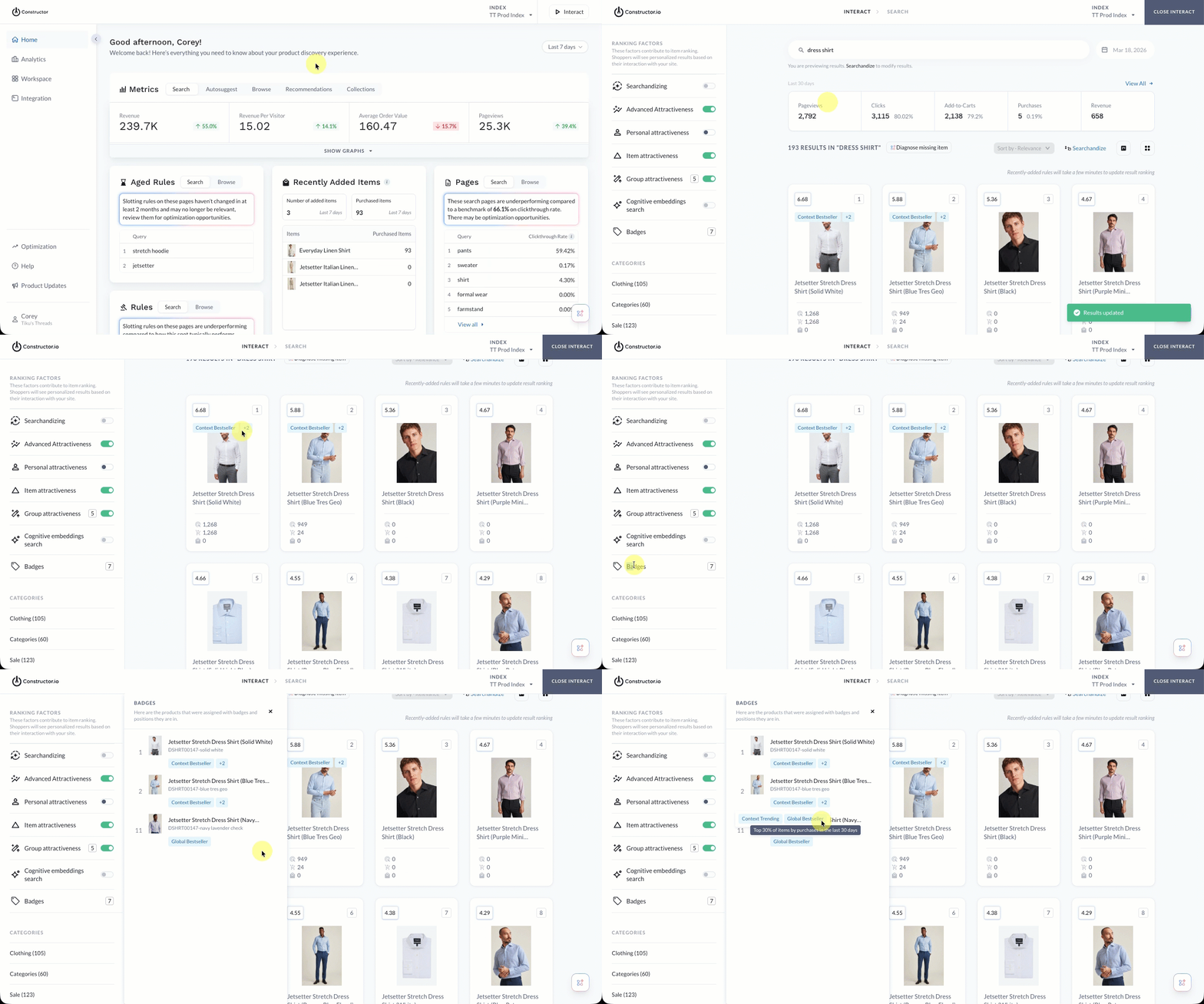
- Select Interact in the top-right corner of the Constructor dashboard.
- To navigate to a search results page, enter a query in the search field provided, then hit Enter on your keyboard.
- To navigate to a browse results page, select a category, facet, or collection page.
- In the side menu, under Ranking Factors, locate Badges.
- If Constructor has applied badges to items on the current page, then a total count of those badges is shown. Please note this is not a count of items with badges, but the total number of badges applied on the current page.
- If Constructor has not applied badges to items on the current page, then a
0count is shown.
- Select the Badges count to launch a sub-menu that lists details for each badged item.
View badged items summary
The Badges sub-menu lists items on the current page with applied badges, including the item name, position, and the badges applied.
In instances where there are multiple badges, you can hover over the + count to view additional badges.
Hover over each badge to view an explanation for why the badge was applied (e.g., performance over a recent time period, etc.).
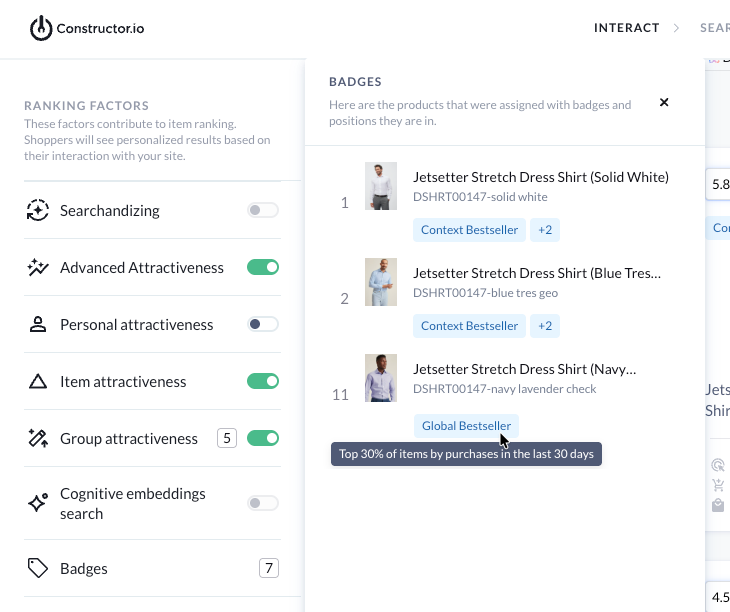
Badges summary listing the items on the current page with badges applied.
Updated 6 months ago