
Create a slotting rule
Available for Search, Browse, Campaigns, Collections, Recommendations, and Facet pages.
Slotting rules allow merchandisers to pin an item, item attribute, or item variation in a specific position in a results set.
For example, if promoting a new sneaker model, a merchandiser could slot the sneaker in the first position of the results set for relevant search queries, category pages, collections, and/or facet pages.
How it works
Merchandisers choose the item or item attribute they wish to slot:
- Slot item: Lock at a specific item in the selected position.
- For example, an electronic store slots a new TV model in the second position on a relevant search results page to improve visibility.
- Slot item attribute: Lock the attribute (e.g., brand, category, color, etc.) in the position but allows Constructor to present a qualifying item that will be most attractive to the specific user viewing the results page.
- For example, a beauty retailer wants to promote a specific brand but not necessarily a specific product. They slot the item attribute
brandin the first position for the search querylipstick. - The first slot will always show a qualifying product from that brand, but Constructor will choose an item that will be most attractive to the user based on our knowledge of them (e.g., color preferences, matte vs. glossy lipsticks, etc.)
- For example, a beauty retailer wants to promote a specific brand but not necessarily a specific product. They slot the item attribute
Merchandisers can either drag an item and drop it in the desired position, manually assign an item (or attribute) to a slot listed in the side menu, or upload a CSV of items with the items’ id and desired positions defined.
Merchandisers can also configure start and end dates for each slotted item and apply the rule to specific segments.
Additional slotting rules
Create a slotting rule
Step 1: Choose a context
Context refers to the results page for which you are creating the rule. For example, a search query, browse category, facet, or collection.
Want to apply the rule across multiple contexts?You’ll need to create a campaign. Follow steps 1-3 in our campaign article, then jump back here for steps 2-4.
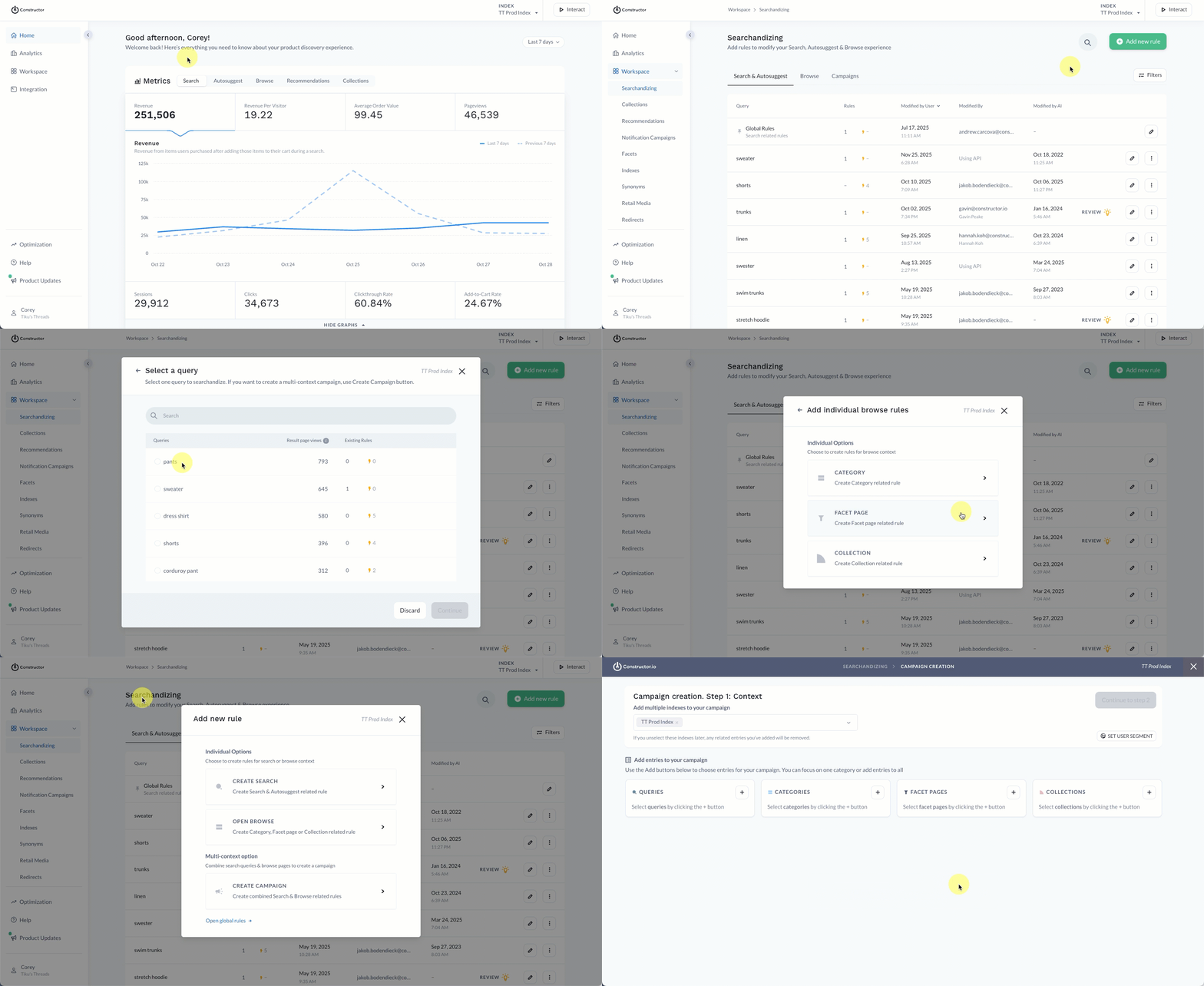
- Select Workspace in the side menu of your Constructor dashboard, then select Searchandising.
- Select + Add New Rule in the top-right corner of the page.
- On the pop-up, choose the context for which you wish to create the rule:
- If you select Search, then choose the desired search query from the list provided. Select Continue to proceed.
- If you select Browse, choose Category, Facet, or Collection. Select the desired option from the list provided. Please only select one category/facet/collection. Select Continue to proceed.
- If you select Campaign, choose the various queries and browse experiences to include in the campaign. Learn more here.
Step 2: Configure rule
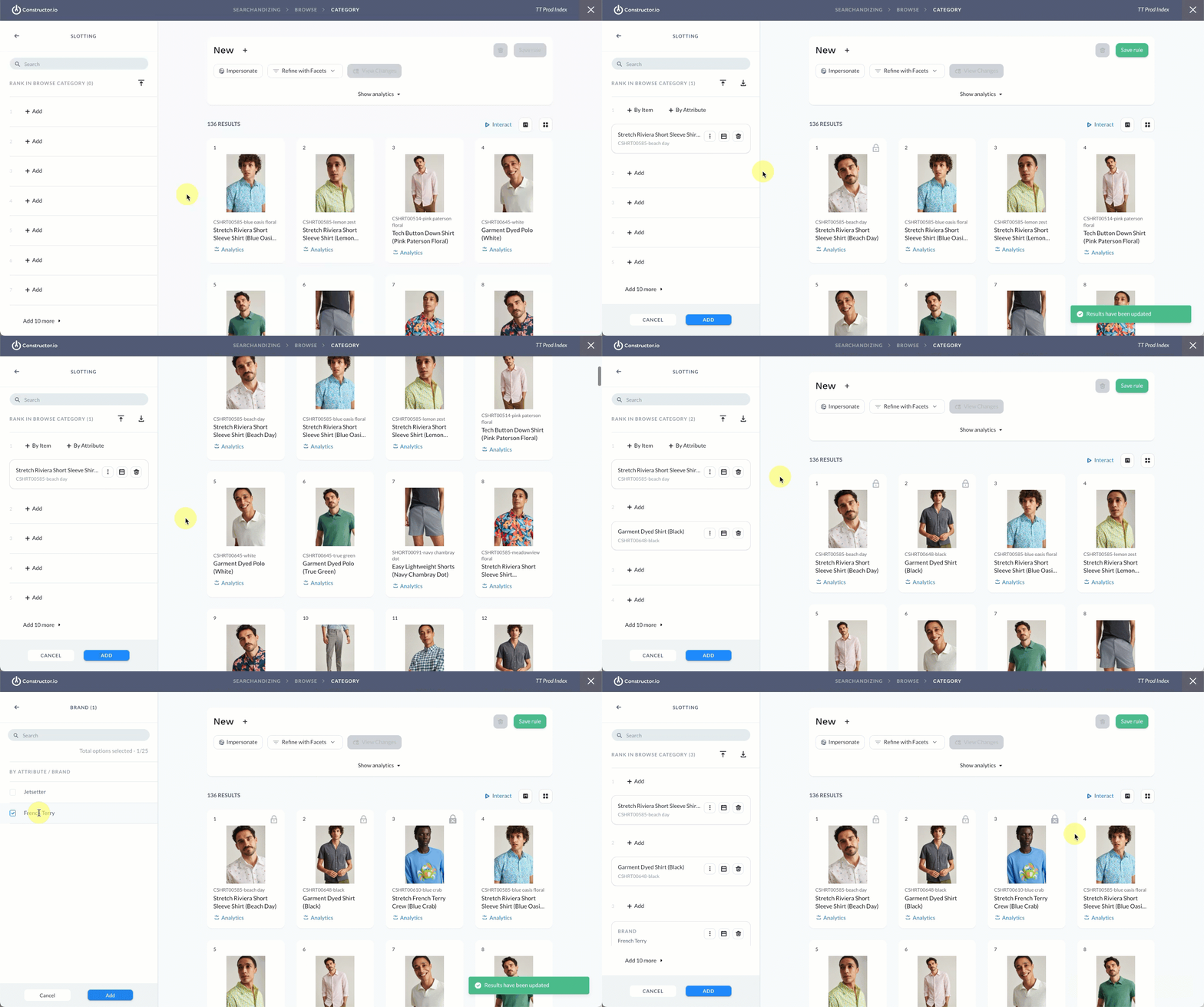
- Select + Add Rules & Content on the left side of the page, then select Slotting.
- Locate the position where you wish to slot the item, then hover over +Add.
- To slot a specific item, select By Item.
- Enter the item ID or name to search for and select the desired item.
- Alternatively, you can select an item in the grid and drag it to the desired position.
- To slot a specific item attribute, select By Attribute.
- Select the attribute you wish to slot, then the specific attribute option (e.g., if the attribute is
color, the attribute option could bered).
- Select the attribute you wish to slot, then the specific attribute option (e.g., if the attribute is
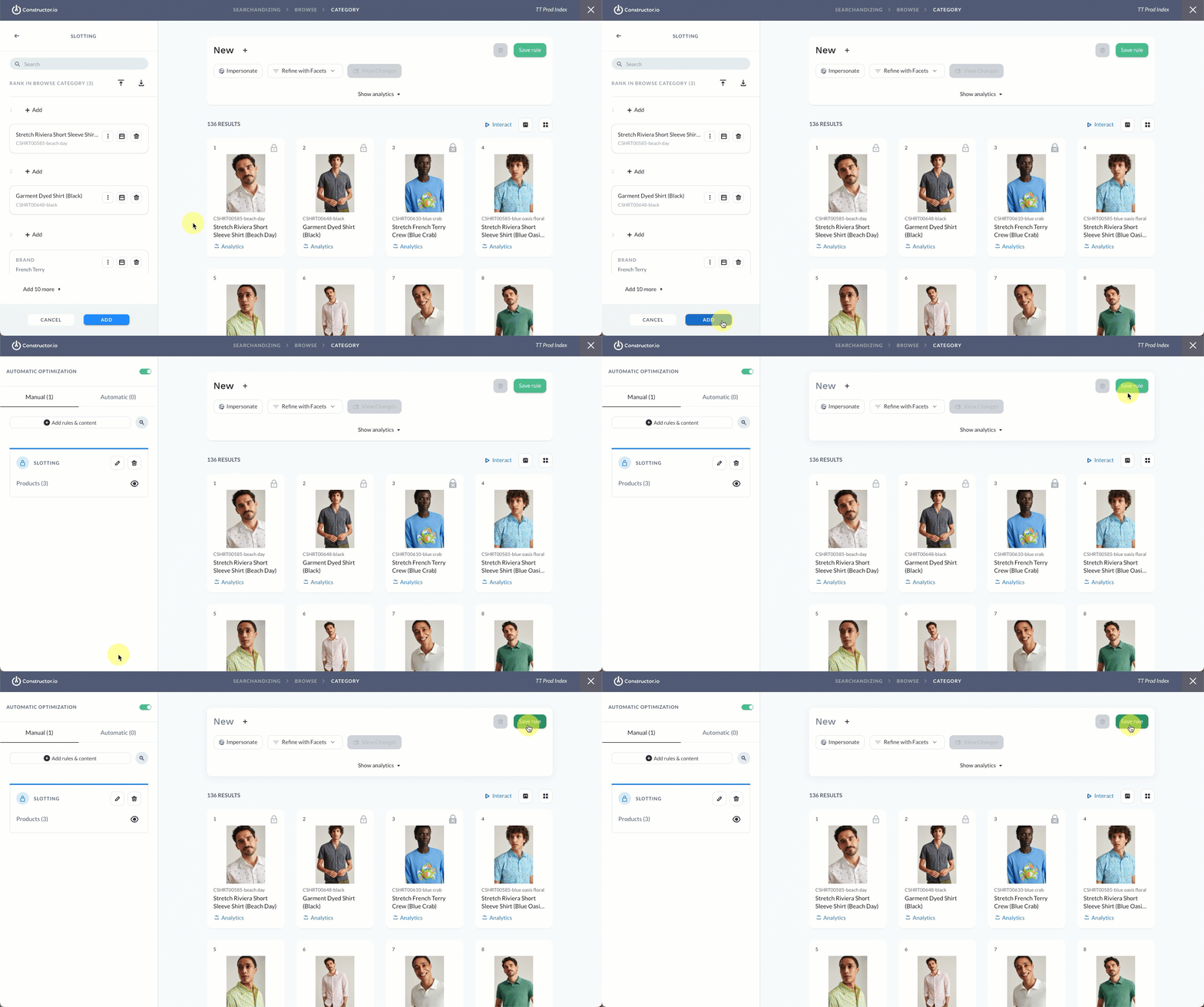
- Select Add in the bottom-left corner of the page.
Want to upload multiple items?Select the upload icon at the top of the side menu to upload a CSV file. You can download the CSV template to specify all items and desired positions.
Add a user segment
You can apply the rule to a specific subset of users by defining a user segment. Available segments include geo-based segments, segments provided using the us parameter, and AI-generated segments (e.g., RFM, Affinity, etc.).
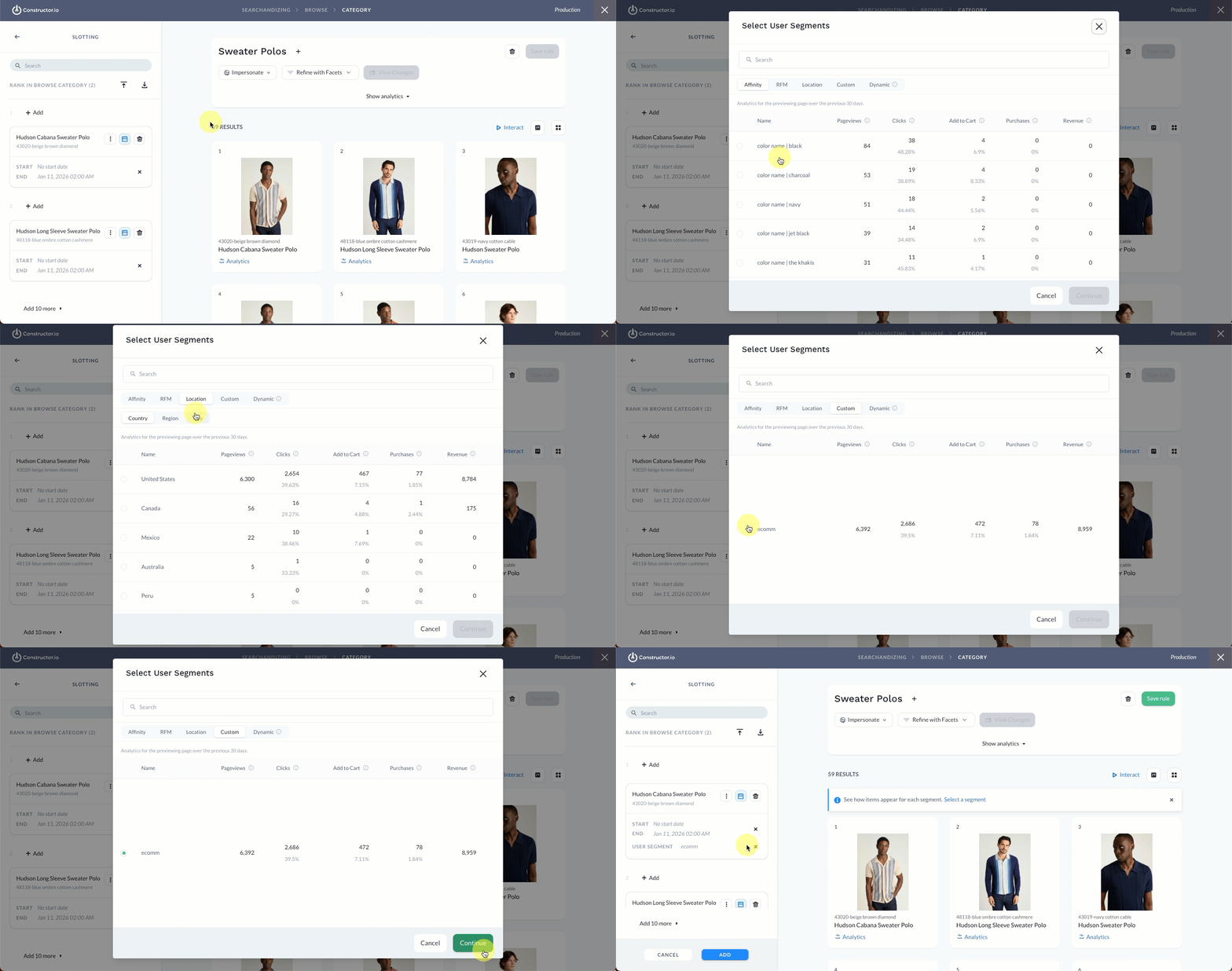
- In the side menu, select the three-dot icon on the slotted item, then select User segment.
- On the pop-up, select your desired segment.
- Use the Search field to search for the segment by name.
- Select any of the segment categories (e.g., Affinity, RFM, Location, etc.) to view available segments.
- Note: Analytics for a segment reflect the behavior of the users included in the individual segment over the last 30 days.
- Select Continue in the bottom-right corner of the pop-up.
💡 Multiple slotting rules can exist for the same position if each rule is for a different user segment.
Add start/end dates
You can add a Start Date and End Date to the rule, which allows you to time box the rule's impact on returned results. Dates are not required. You can also define a start date without a set end date. Start date will always default to the current date.
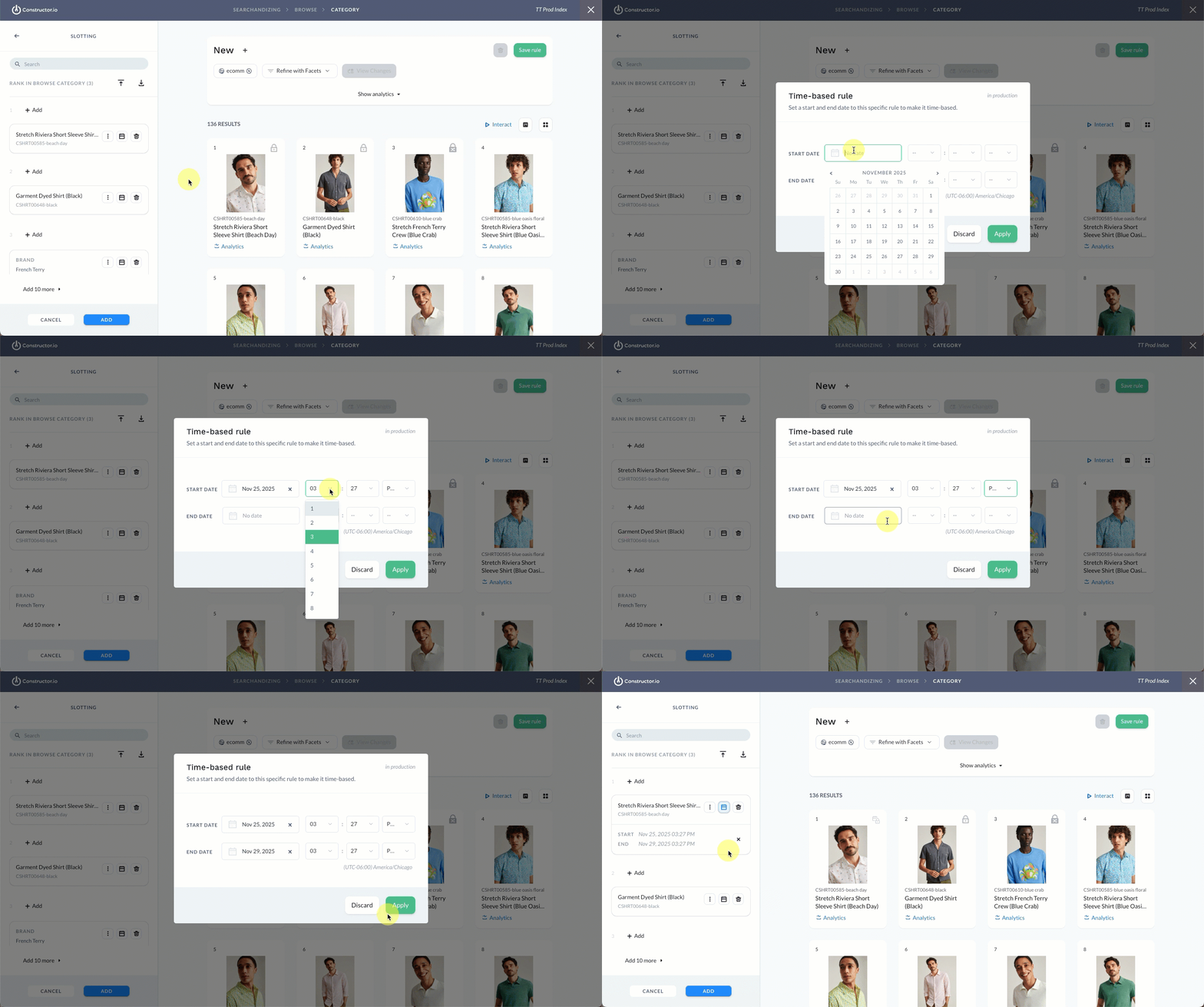
- In the side menu, select the calendar icon on the slotted item.
- Dates: Select either Date field to launch a calendar picker, which allows you to choose a specific start and end date.
- Time: Once you define a date, a default start or end time will populate in drop-down fields to the right of the date fields. Use these drop-downs to edit the start and end times (hour, minute, AM/PM). Times are in the time zone displayed beneath the fields.
- Once done, select Apply in the bottom-right corner of the pop-up.
💡 Multiple slotting rules can exist for the same position if the rules do not have overlapping time frames.
Step 3: Save rule
- Continue slotting items and/or attributes, as desired.
- Once done, select Add in the bottom-left corner of the page. This will take you back to the list of all rules and content for the context.
- Select Save Rules in the top-right corner of the page to save the rule.
Updated 8 months ago