
Installation and configuration
Constructor’s Data Attributes Validator Extension (DAVE, for short) is an extension that helps you validate Constructor on-site tracking by scanning for required data-cnstrc-* attributes on key page types (e.g., Search, Browse, PDPs, Autocomplete, and Recommendations).
Constructor's Data Attributes Validator Extension (DAVE) can be installed from the Chrome Web Store.
DAVE also supports console logging and optional product validation, making it easier to debug issues and ensure tracking remains accurate after UI changes.
Install extension
This extension works with any Chromium-based browser (Chrome, Brave, Microsoft Edge, and more).
The extension can be found on the Chrome Web Store. Once the extension has been downloaded and installed, you can pin it to your Chrome bookmarks bar for quick access.
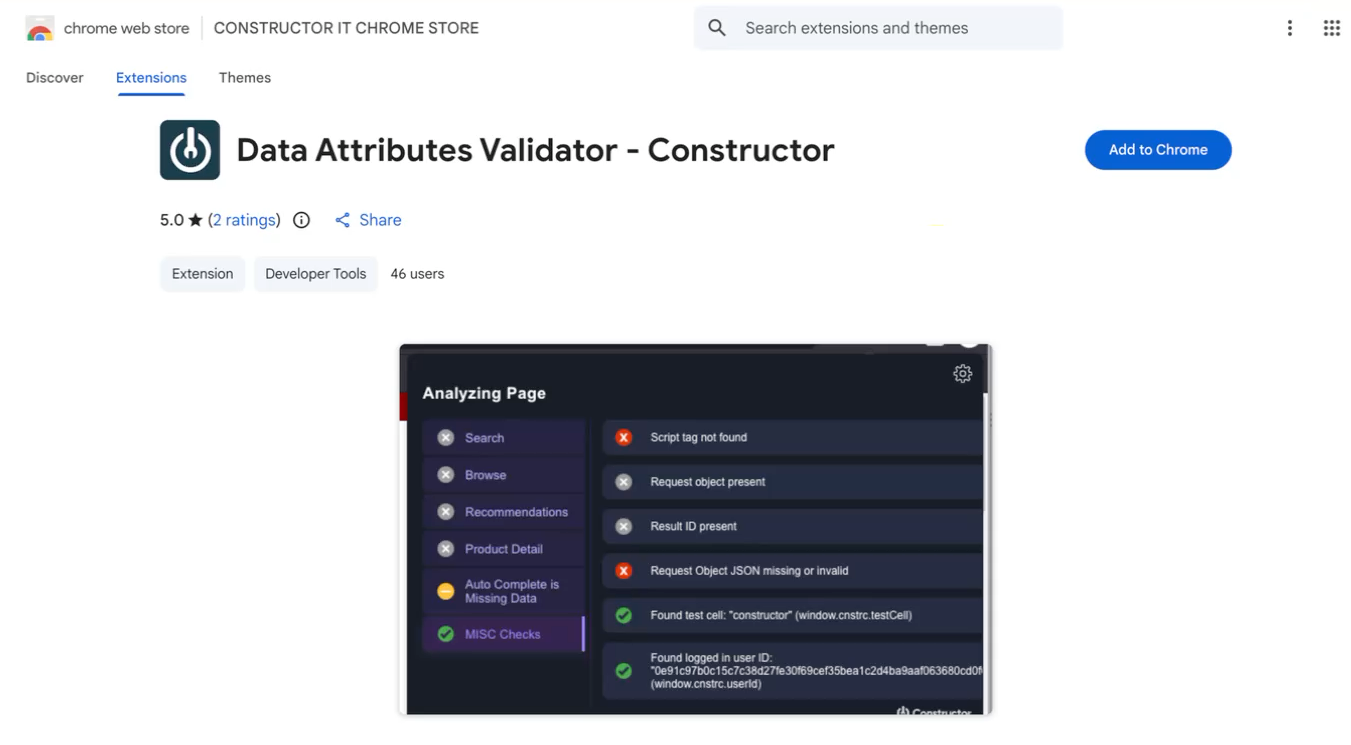
- Select Add to Chrome on the extension page.
- Confirm the install when prompted.
- Once installed, select the puzzle piece icon in your browser toolbar to access the extension.
Want quick access? Select the pin beside the extension name to pin the extension icon to your browser toolbar.
Configure extension
After you install the extension, you’ll need to configure it. To get started, navigate to your site. Launch DAVE from your browser window, and select the cog icon in the top-right corner of the extension.
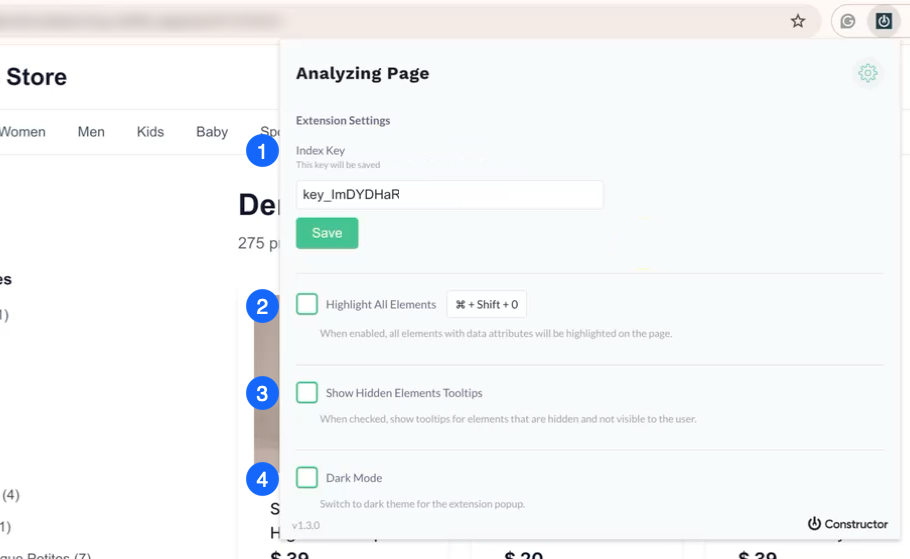
Extension configuration options located in the settings menu.
1. Confirm index key
DAVE uses index (API) keys to validate surfaced data attributes against your catalog data in Constructor. For example, it checks whether attributes like item and variation IDs are valid.
If the extension detects an index key on the page (via window.cnstrc.indexKey), it will automatically populate it in the settings tab. You can also configure the index key yourself via the settings page.
If the index key is missing or incorrect, some validations may appear incomplete or fail even if the page looks correct.
- Locate the Index Key field.
- If an index key is present, confirm it is the correct index key for the site.
- If the index key is missing, enter the correct index key for the site.
- Select Save.
2. Highlight all elements
DAVE can visually highlight detected elements on the page it is validating. This makes it easier to match a checklist item to its corresponding element without manually hunting through the page.
To enable, select the Highlight All Elements checkbox. If you are a Mac user, you can easily switch between a highlighted and not highlighted state by hitting CMD + Shift + 0 on your keyboard.
3. Show hidden elements tooltips
When enabled, DAVE displays tooltips and diagnostics for DOM elements that are not currently visible to the shopper (e.g., hidden panels or off-screen UI). Enabling this setting is useful for debugging.
To enable, select the Show Hidden Elements Tooltips checkbox.
4. Dark mode
If desired, you can change DAVE’s UI theme. This does not affect what DAVE validates, only how the extension looks.
To enable, select the Dark Mode checkbox.
We'd love your feedbackWe’d love to hear about your experience with the DAVE extension. Your feedback helps us understand what’s working and where we can improve. Share your feedback with our team.
Updated 18 days ago